
Scanning your cards
Point your camera at a card and Compendium identifies it for you — add one quickly, or scan a whole pile in one sitting.
On this page
Open the scanner
-
Go to your Library
Open the Library and tap the plus button.
-
Choose a scan mode
From the menu, pick Quick Scan for a single card, or Bulk Scan to add several in a row.Choose Add Cards to Library → Scan with Camera, then pick Scan Single Card for one card or Bulk Scan to add several in a row.
 Screenshot
images/screenshot-card-scan.png
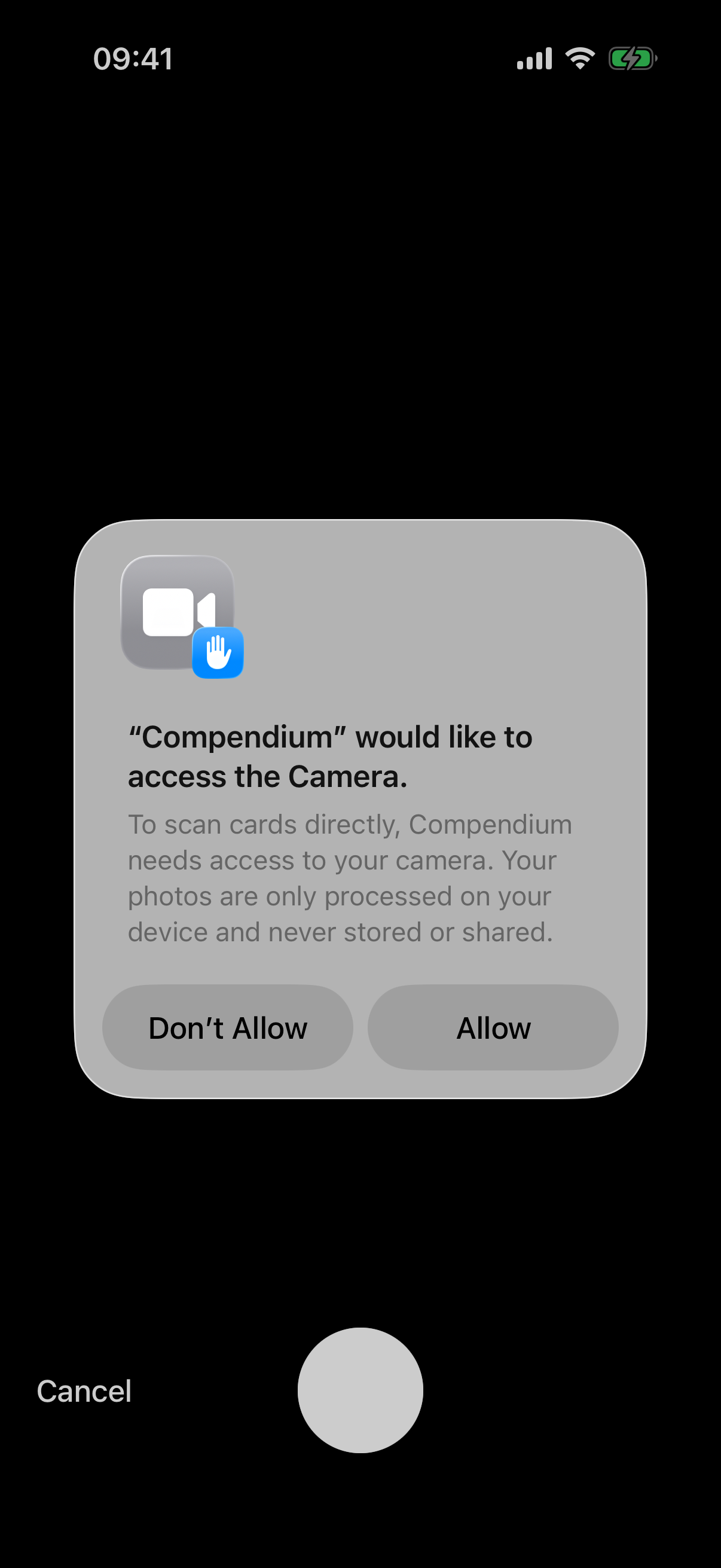
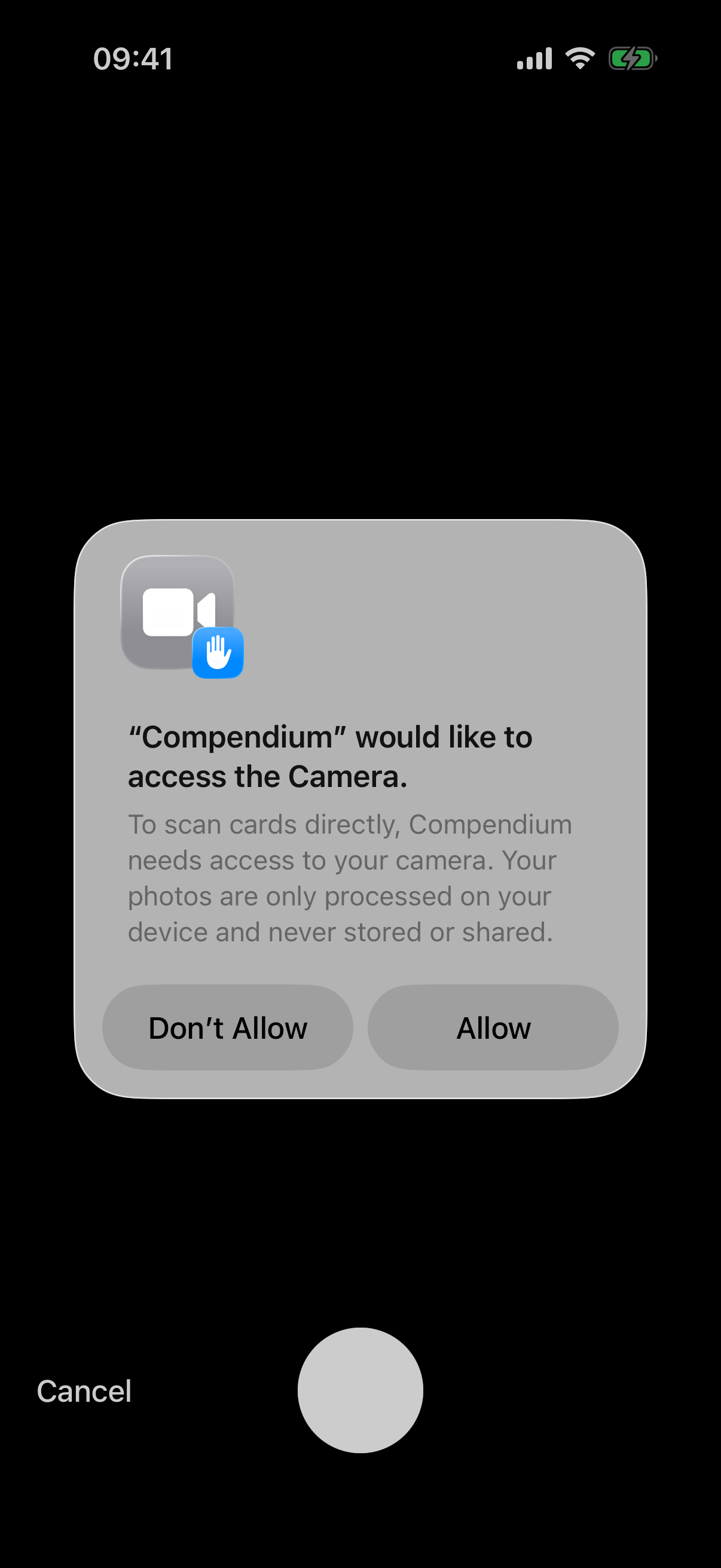
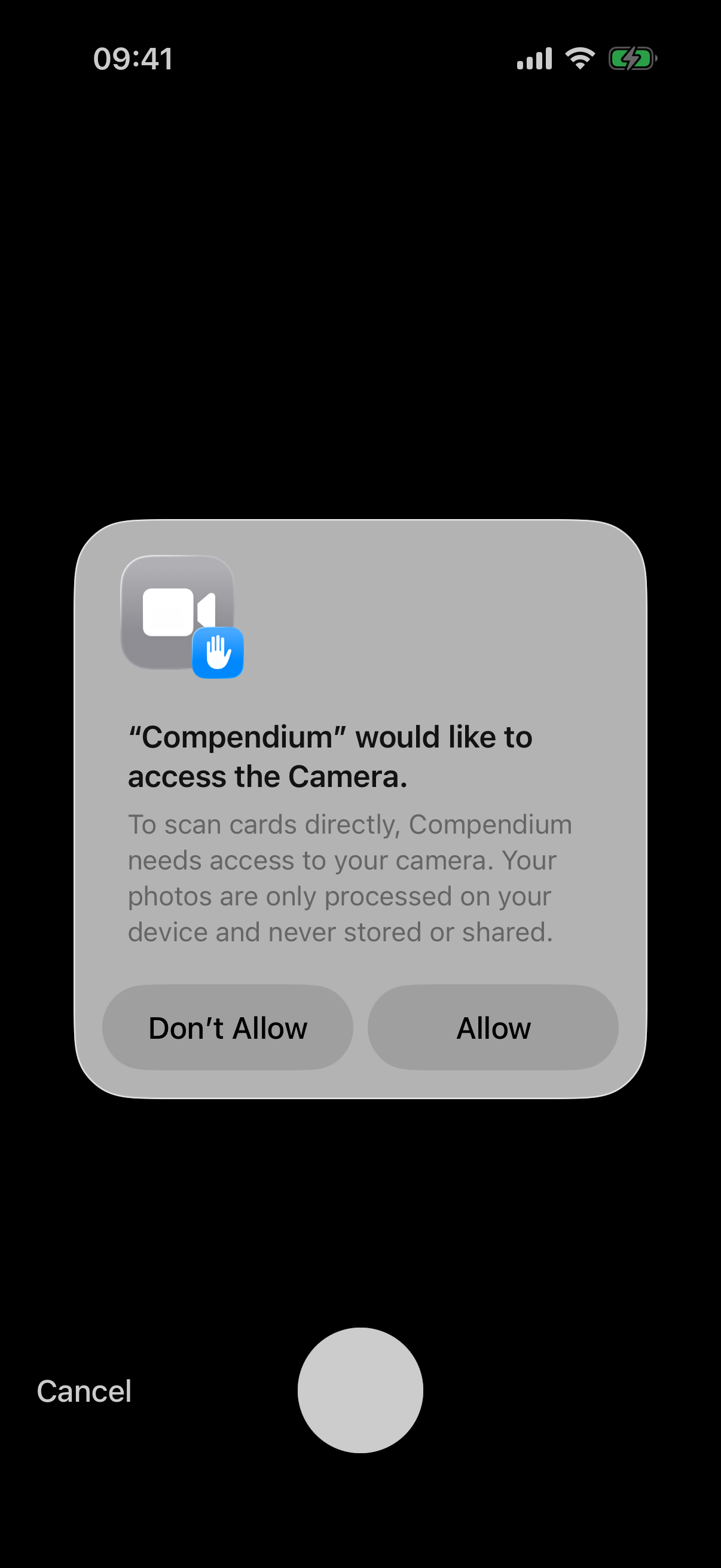
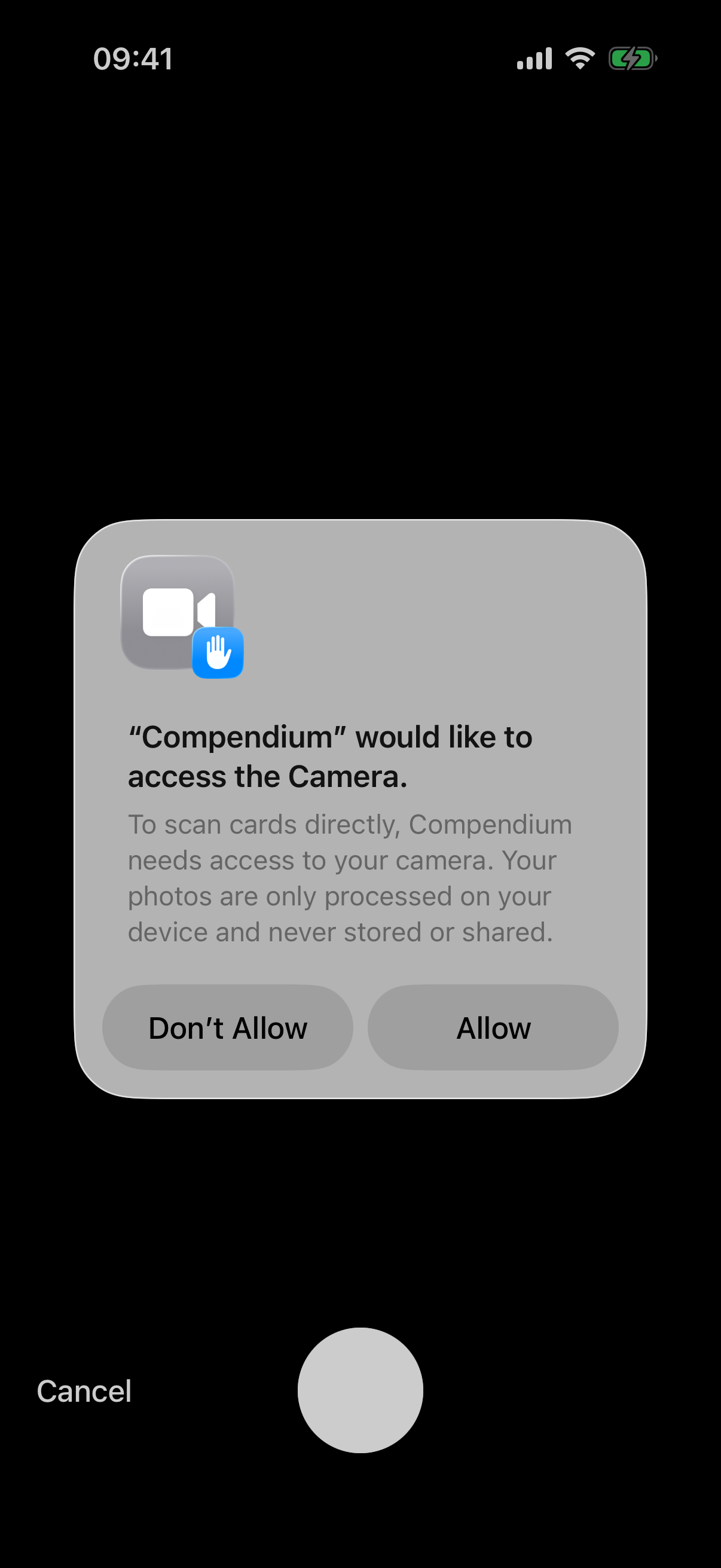
Allow camera access
The first time you scan, your phone asks for permission to use the camera. Tap Allow.
If you tapped “Don’t Allow” before, turn it back on in Settings → Compendium → Camera.
If you denied access before, Compendium shows an in-app permission prompt the next time you scan — tap Allow there to grant camera access.
Quick Scan (one card)
-
The camera opens automatically
When you start a scan, the camera opens straight away — you don't need to tap anything to launch it.
Prefer an existing photo? Use the photo-picker option to choose one from your library instead.
Prefer an existing photo? Back out of the camera to find a From Library / Take Photo option.
-
Frame the card
Fill the frame with the card, then tap the white shutter button to capture.
Tap anywhere to focus. Need a redo? Tap Rescan.
-
Let it identify the card
You’ll see Identifying card… while Compendium reads the name and collector number.
 Drop screenshot here
images/guides/card-scanning/02-capture.png
Confirm the printing & details
Once identified, you’ll see the card with its detected set, collector number, rarity and price. Adjust anything that’s off:
-
Fix the printing (if needed)
Tap the pencil icon next to the set info to pick the exact printing manually.
-
Set foil & condition
Flip the Foil toggle if it’s a foil, and choose a Condition — NM, LP, MP, HP or DMG.
Add it, then scan another
-
Choose where it goes
Tap Add to Library to save the card to your collection.
Tap Add to Library to save the card to your collection, or Add to Deck to put it straight into a deck.
If you start a scan from the home-screen shortcut, you'll also see an Add to Wishlist option.
-
Keep going or finish
You’ll see Card Added! Tap Scan Another to reopen the camera, or Done to close the scanner.
 Drop screenshot here
images/guides/card-scanning/05-card-added.png
Bulk Scan (many cards)
Adding a whole stack? Bulk Scan lets you snap them all first, then review together.
-
Capture each card
Hold up a card and tap the shutter. A thumbnail drops into the strip at the bottom and the counter on Done ticks up. Repeat for every card.
-
Tap Done
When you’ve captured them all, tap Done to open Bulk Scan Results.
-
Review the list
Each card identifies in turn. Tap the pencil icon to fix any printing, or remove any card you don’t want from the list.
-
Add them all
Tap Add All to save the whole batch to your Library (or to the deck you started from).
 Drop screenshot here
images/guides/card-scanning/07-bulk-results.png