
Your library & wishlist
Track the cards you own and the ones you want, with live prices and values.
On this page
Open Collections
Tap the Collections tab (the books icon). With the wishlist enabled (the default), use the toggle at the top to switch between Library and Wishlist (or swipe between them). If you've turned the wishlist off, the tab is simply labelled Library.
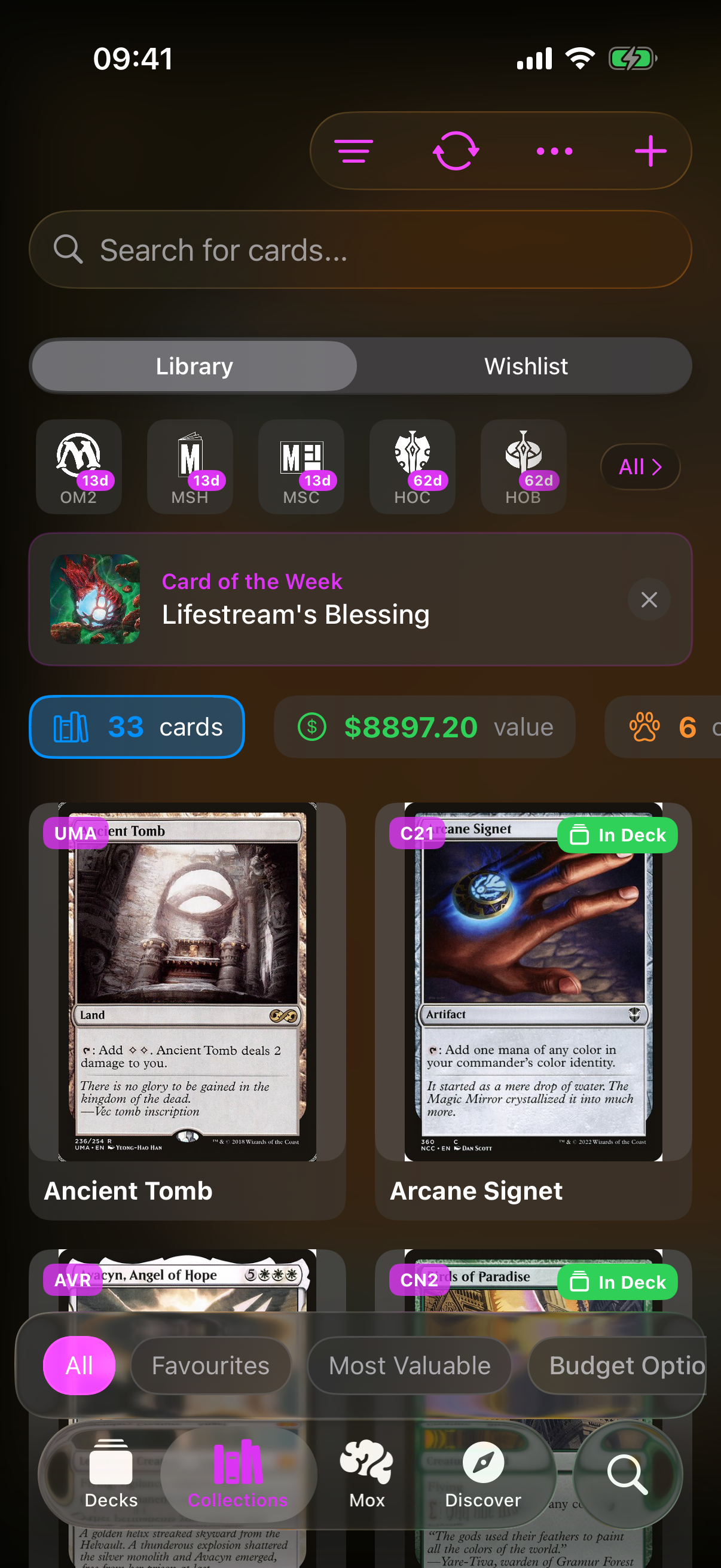
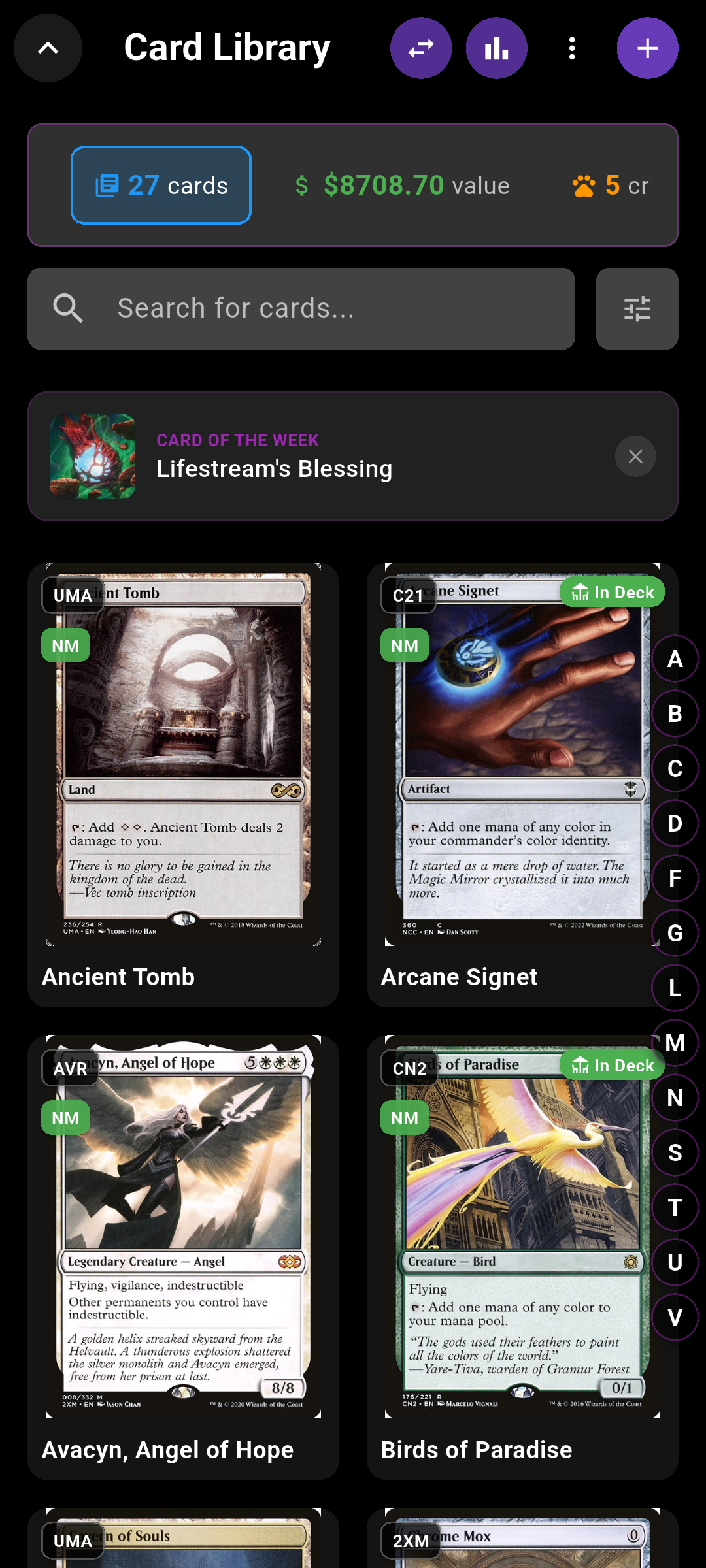 Screenshot
images/screenshot-collection.png
Add a card to your Library
-
Open the add menu
Tap the plus button (top-right) and choose Search.
You can also pick Quick Scan, Bulk Scan, Video or Add from Deck.
You can also pick Scan with Camera, From Gallery or Add from Deck.
-
Search for the card
On the Add to Library screen, use the Search for a card... field.
-
Pick your card
Tap the card you want to add.
Pick printing, foil & condition
When you add a card from the Library search, it's added directly — there's no printing picker, foil toggle or condition step.
-
Choose the printing
In the Select Printing sheet, choose the exact printing (set name, code, rarity, collector number and price are shown).
-
Set foil
Turn on Foil if it's a foil.
-
Set the condition
Set the Condition — NM, LP, MP, HP or DMG.
-
Add it
Tap Add.
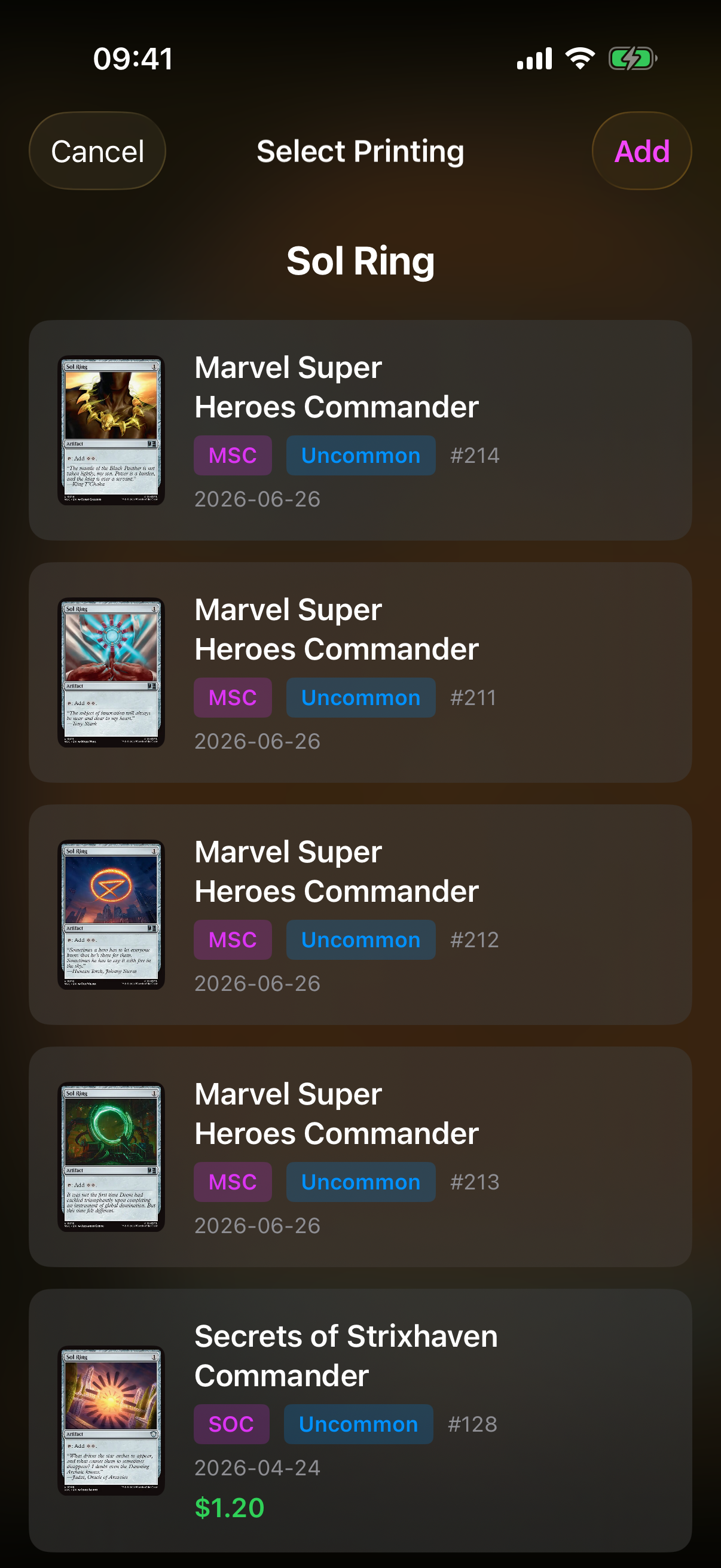
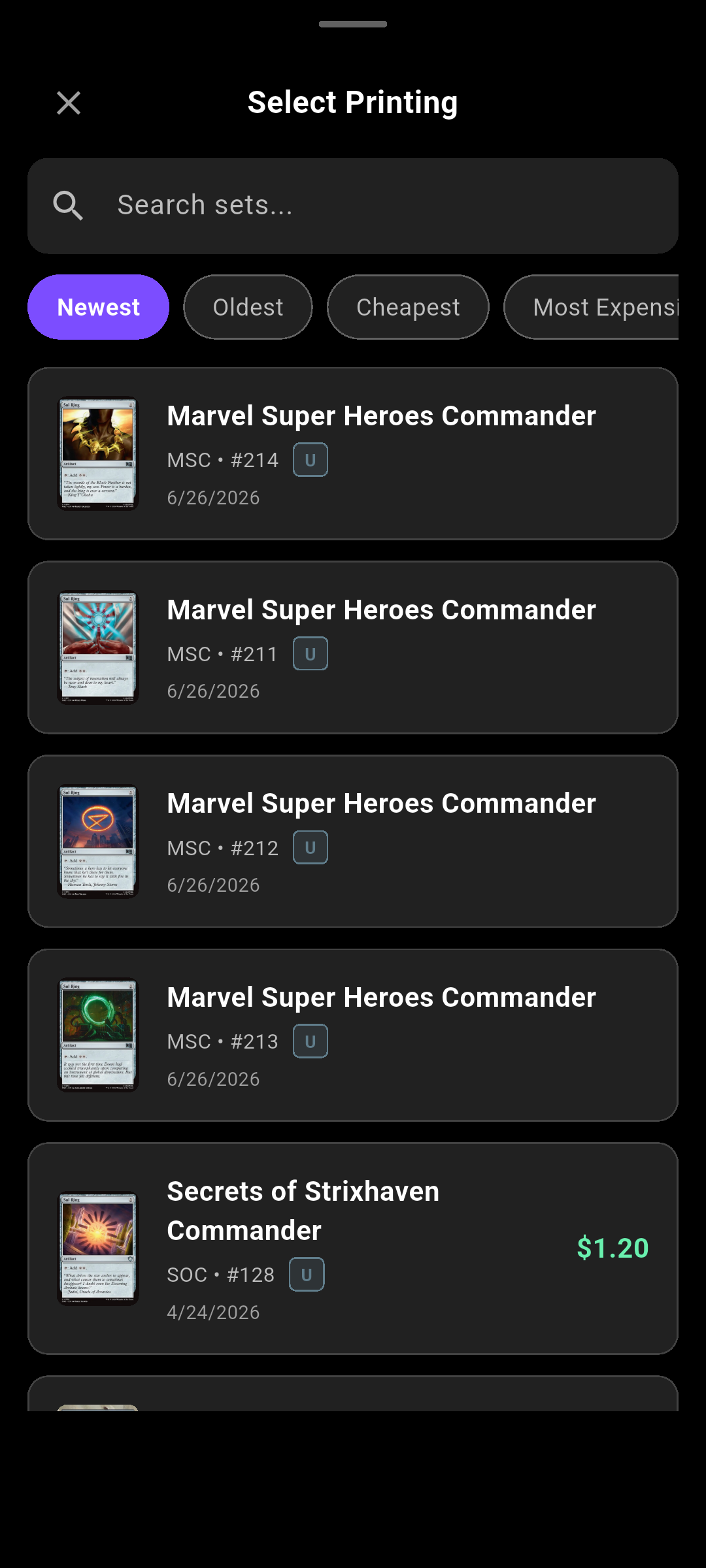 Drop screenshot here
images/guides/collection-wishlist/03-printing.png
See your collection value & stats
A stats row shows your Cards count, Total Value, and counts by card type. Tap Total Value to open the full collection analytics (set completion, colour and type breakdowns).
Search & filter your Library
-
Search by name
Use the Search for cards... field to find a card by name.
-
Tap a filter chip
Tap a filter chip — All, Favourites, Most Valuable, a set, or one of your own tags (tap Add Tag to make one).
Tap a filter chip — All, Favourites, Recently viewed or Most viewed.
-
Open the full filters
For more, open the Filter Library sheet (the filter icon).
In the Filter Library sheet:
Remove a card
Open a card's details, find the Your Collection section, then press and hold a copy and choose Remove from Library.
Open a card's details, find the Your Collection section, then tap Remove copy. In the confirmation dialog, tap Remove.
Switch to your Wishlist
Tap the Wishlist tab. Search it with Search wishlist.... To add cards, tap the plus button to open Add to Wishlist, search, and tap a card.
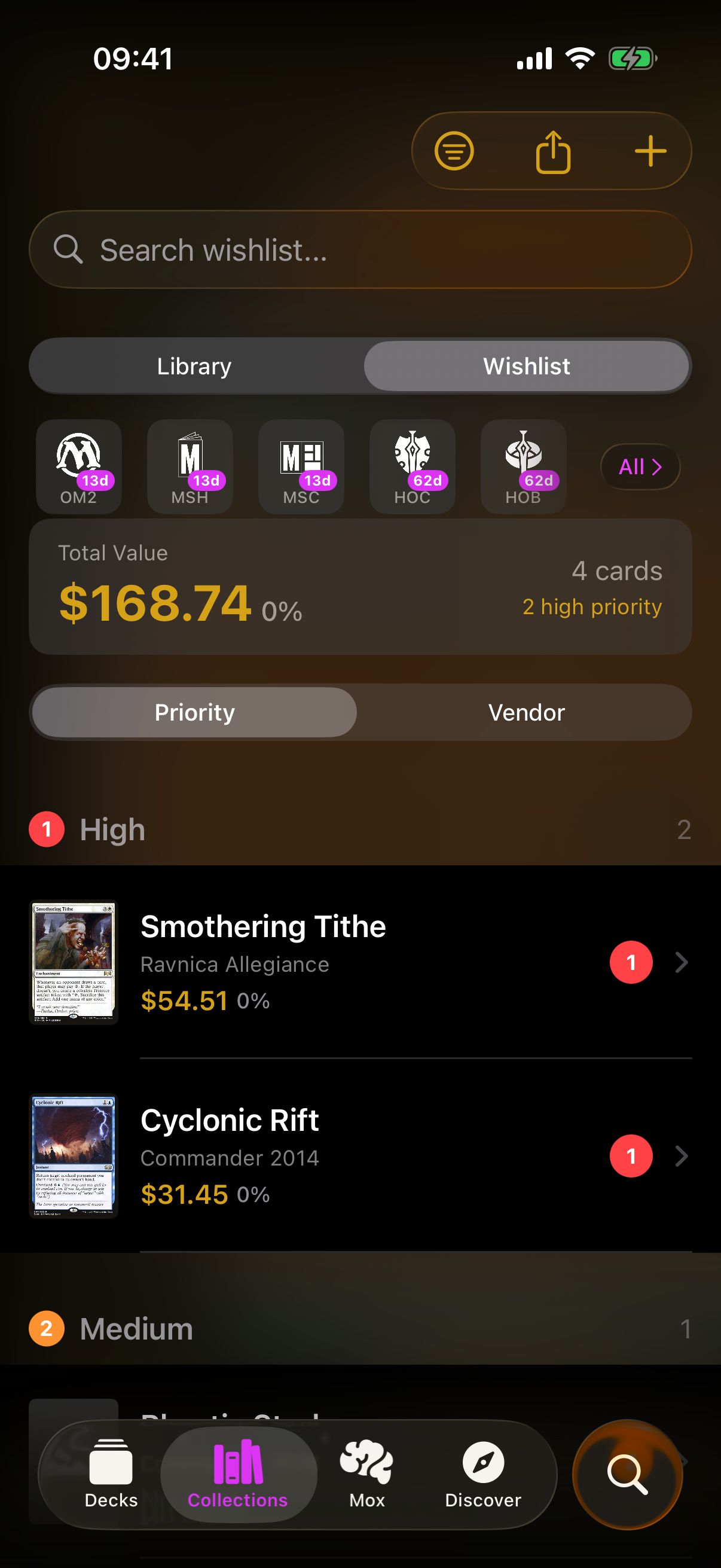
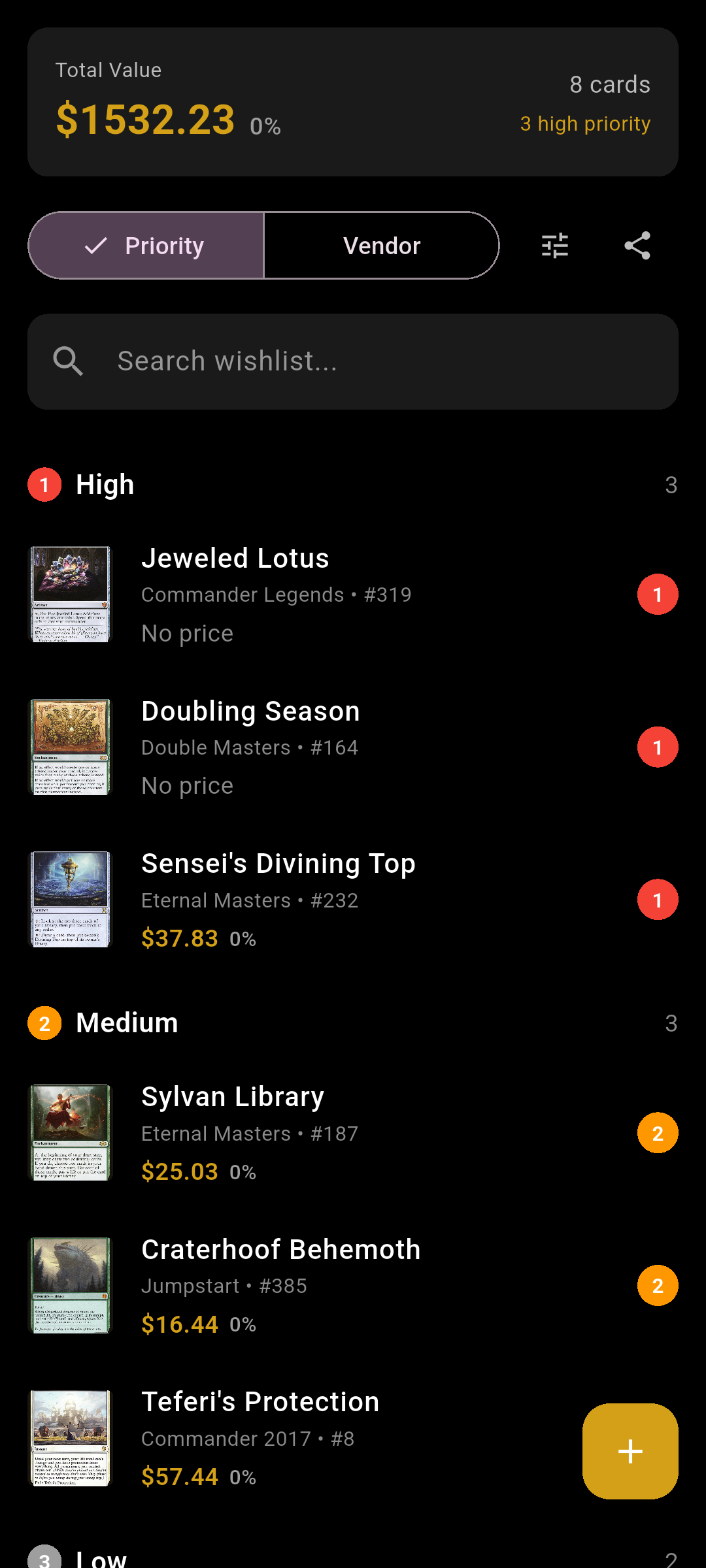 Screenshot
images/screenshot-wishlist.png
Manage your wishlist
Mark a card as purchased
Swipe a wishlist card right to Purchased (or long-press → Mark as Purchased). In the Mark as Purchased dialog choose Add to Library & Remove from Wishlist or Just Remove from Wishlist.
Swipe a wishlist card right to Purchased (or long-press → Mark as Purchased). This removes the card from your wishlist — it isn't added to your Library automatically.