
Trade binder
Your trade binder pairs the spare cards you can trade away with the cards you're after — built automatically from your library and wishlist, with values, ready to export for trade night.
On this page
What the trade binder is
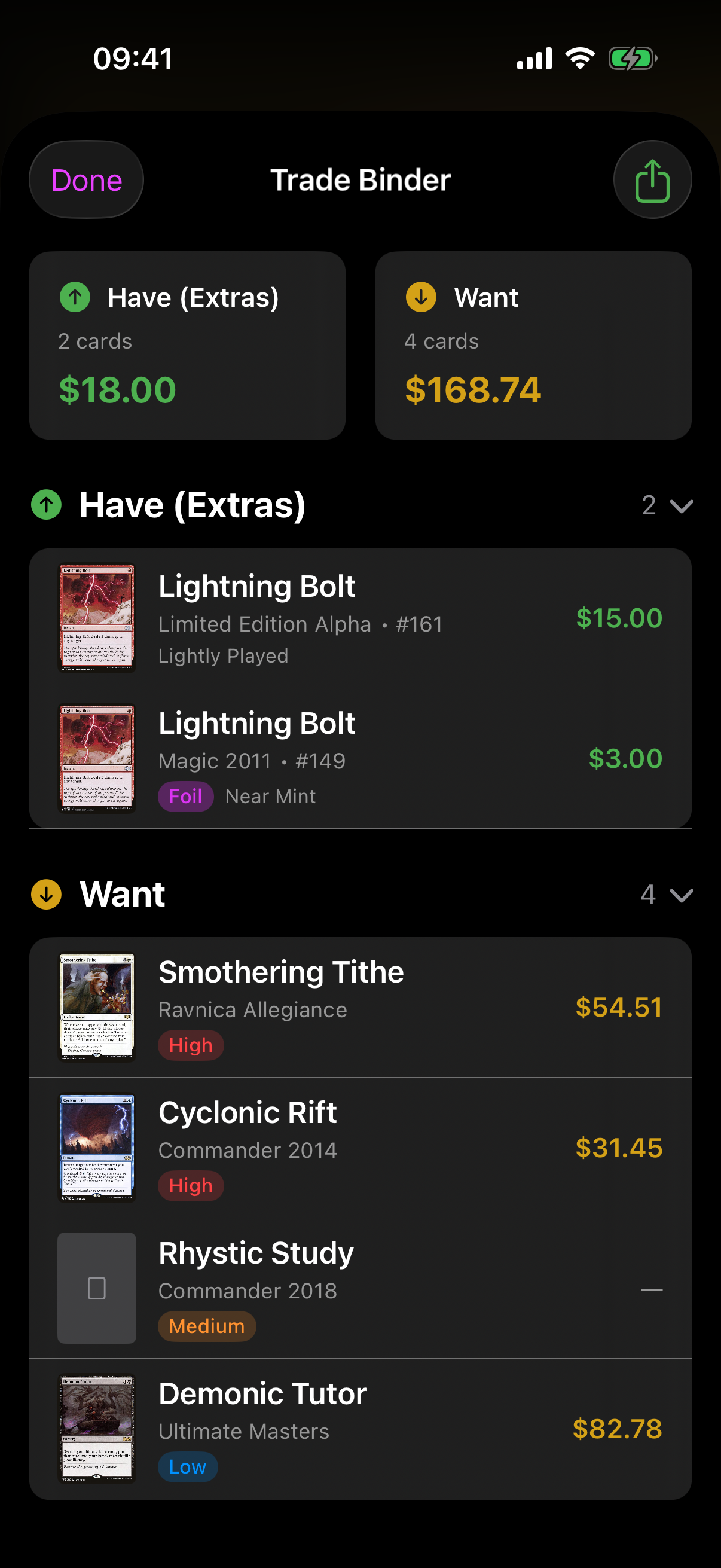
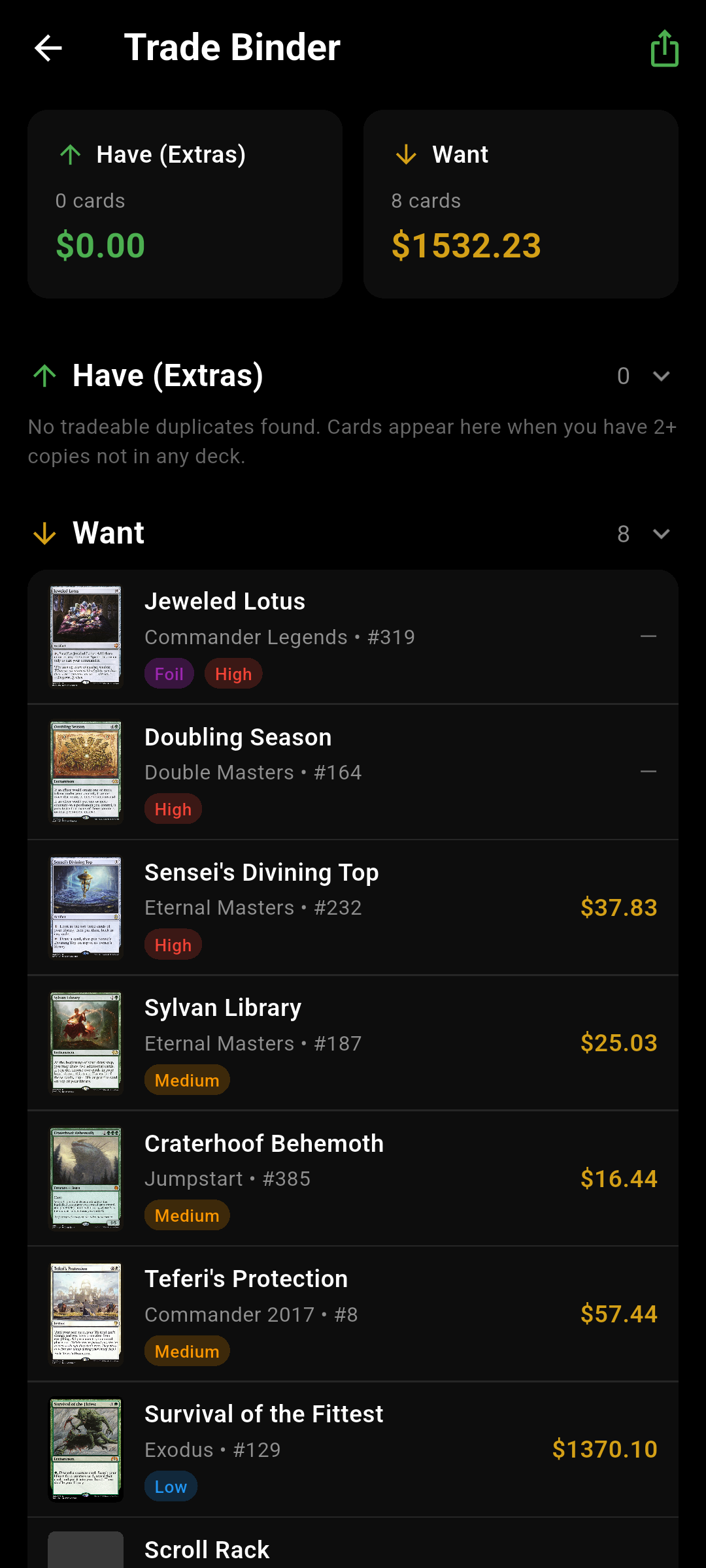
The trade binder is a single screen that shows two lists side by side: your Have (Extras) — duplicate cards you could trade away — and your Want — the cards on your wishlist. It's built automatically, so there's nothing to add or remove by hand: it reflects whatever is in your collection and wishlist.
Open the trade binder
Open your Library and tap the trade button (the swap / two-arrows icon) in the toolbar. The trade binder opens as a sheet over your library.The trade binder opens as its own screen.
Have, Want & values
At the top, two summary cards show the count and total value of each side — Have (Extras) and Want. Below them are two collapsible sections:
-
Have (Extras)
Each tradeable card lists its set, collector number, foil status, condition and value.
-
Want
Each wishlist card lists its set, number, foil status, your wishlist priority, and current price.
Tap a section header to collapse or expand it.
 Drop screenshot here
images/guides/trade-binder/01-binder.png
Filling your binder
Because the binder is generated from your data, you fill it indirectly:
- A card appears under Have (Extras) when you own 2 or more copies of it and those copies aren't in any deck.
- A card appears under Want when it's on your wishlist.
If both sides are empty you'll see a No Trade Data message prompting you to add duplicates to your library and cards to your wishlist.
Export & share
When you have something to trade, tap the export / share icon in the top bar to open the export sheet. There you can:
-
Choose a format
Pick MTG Standard (a plain decklist-style list) or CSV (a spreadsheet-friendly format).
-
Copy or share
Tap Copy to put the list on your clipboard, or Share to send it through the system share sheet — handy for posting your haves and wants in a group chat.