Achievements
As you collect cards, build decks and play games, Compendium quietly tracks milestones and awards achievements — and some unlock alternate app icons.
Open Achievements
You can reach Achievements from a couple of places in the app — there's an achievements shelf or trophy entry in your Library and in your Decks screen. Tapping it opens the full Achievements screen.
Tracking & progress
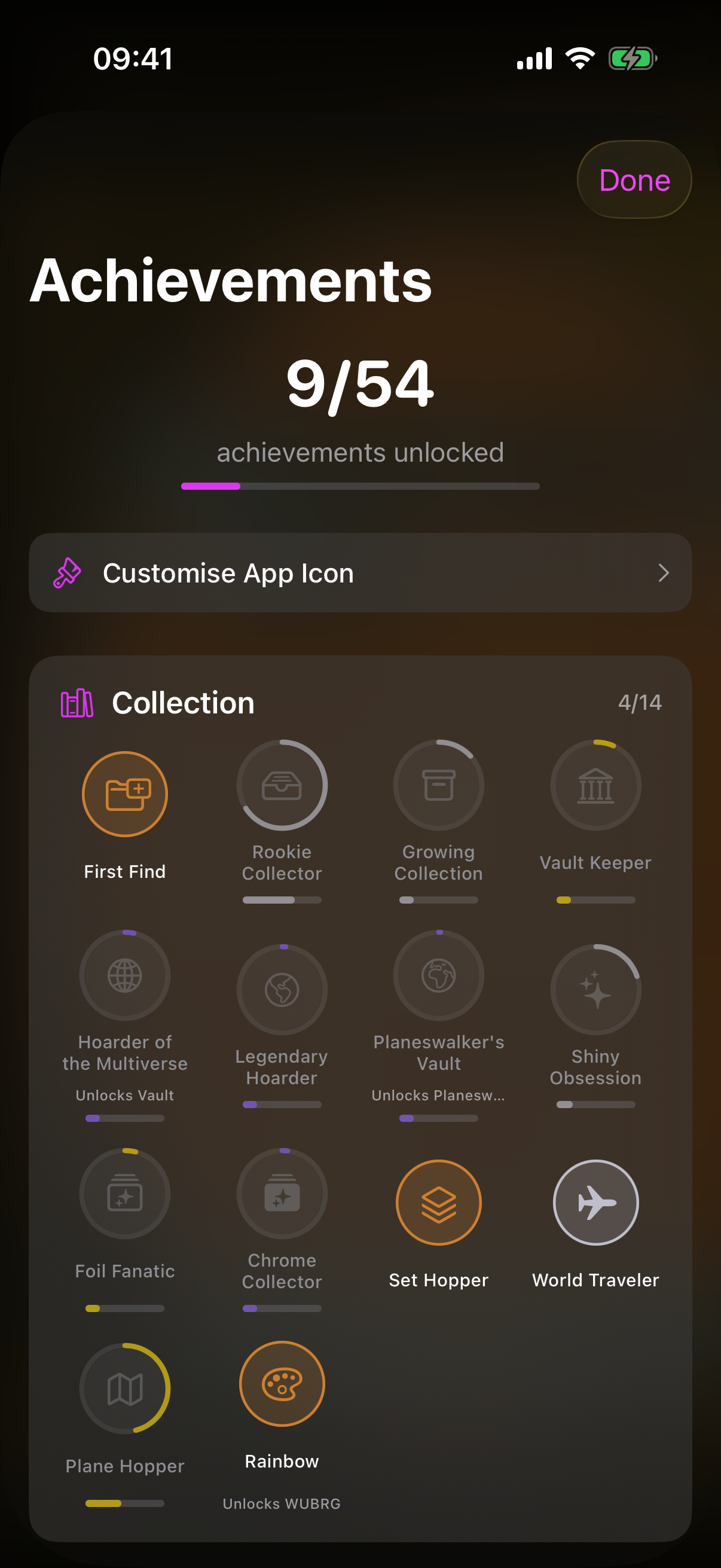
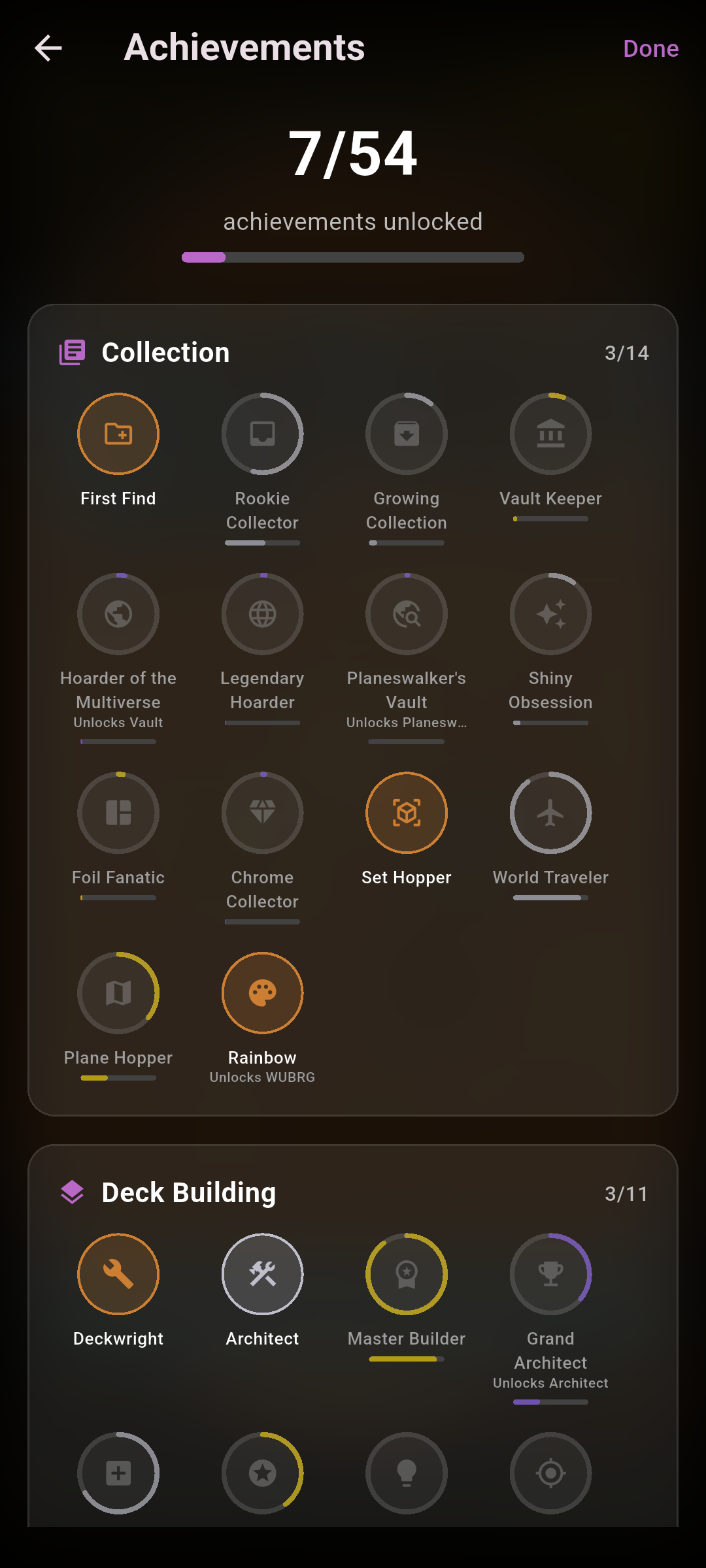
At the top, a counter shows how many achievements you've unlocked out of the total, with a progress bar. Below that, achievements are grouped into categories (such as collecting, deckbuilding and play), each with its own unlocked count.
- Each achievement is shown as a badge with its title.
- Unlocked badges are highlighted; locked ones are dimmed and show a small progress bar toward their threshold.
- If a badge unlocks an app icon, a short Unlocks… note appears under it.
 Drop screenshot here
images/guides/achievements/01-achievements.png
Achievement details
Tap any badge to open a popover with its description, how far along you are toward its goal, and — for unlocked achievements — the date you earned it.
Unlockable app icons
Some achievements reward an alternate app icon for Compendium's home-screen icon. When you've unlocked the relevant achievement, a Customise App Icon banner appears on the Achievements screen — tap it to open the app-icon picker and choose a new icon.
You can also open the icon picker from the detail popover of an achievement that has a linked icon.