Chatting with Mox
Ask Mox anything about Magic — rules, cards, strategy — and let it act on your decks and collection.
On this page
Open Mox
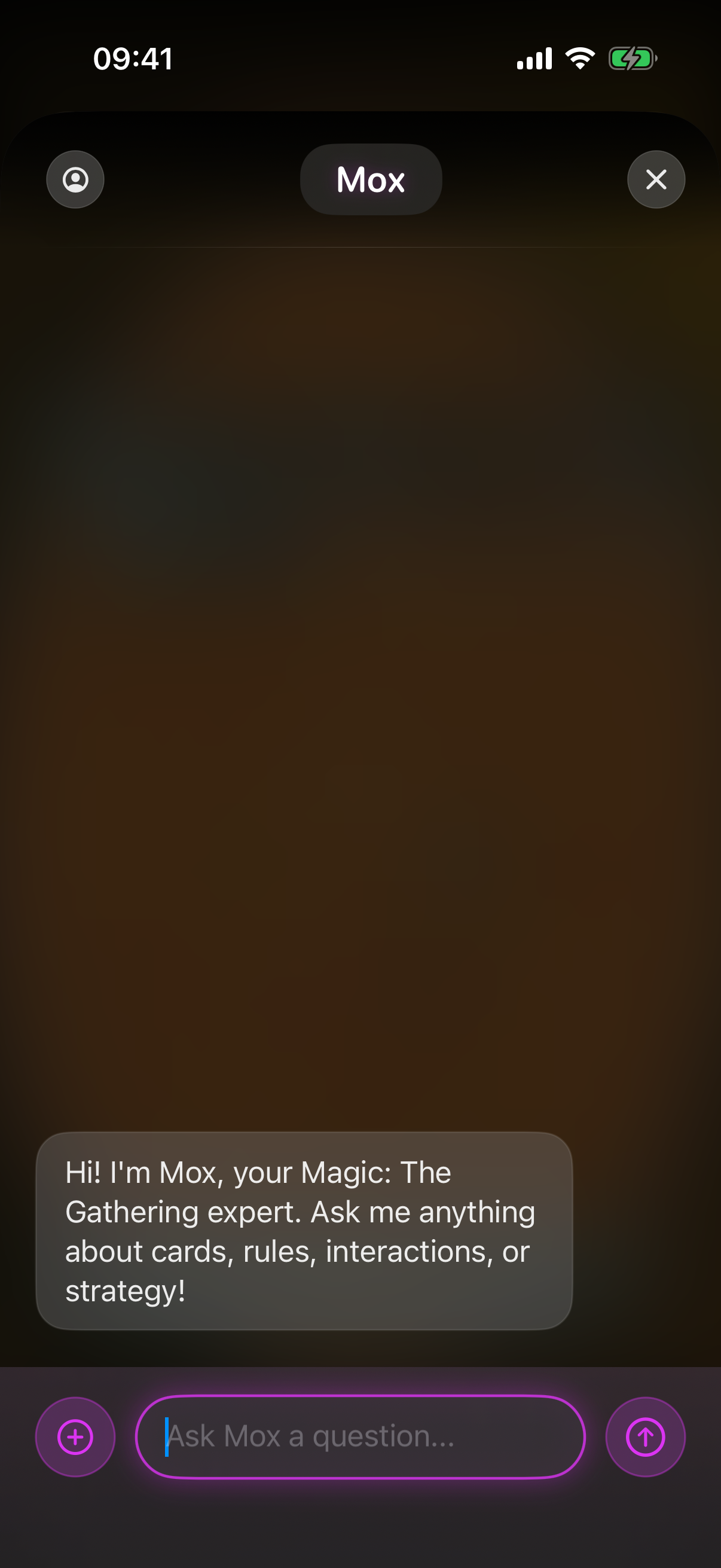
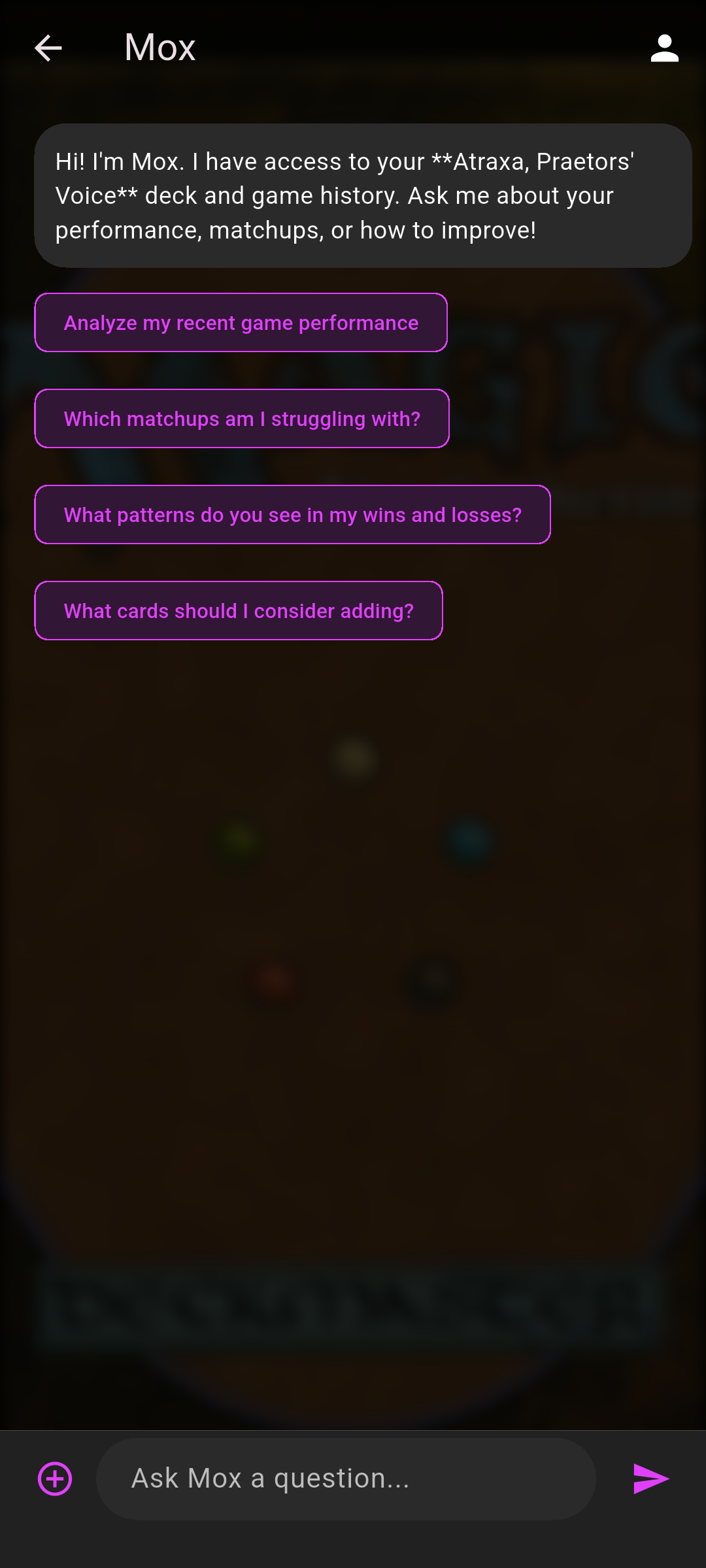
Tap the Mox tab to open Mox Chat. You can also start a deck-aware chat from a deck or from the game log, where Mox already knows that deck — and Mox is game-history-aware too, so it can reference how that deck has played.
On the empty chat screen, Pro users tap New Chat to begin. Free (non-Pro) users see a start button that opens the paywall instead: Upgrade to Pro: Subscribe to Chat.
The empty chat also surfaces a Card of the Week suggestion you can tap to get started.
 Screenshot
images/screenshot-ai-chat.png
Ask a question
-
Type your question
Type in the Ask Mox a question... field and send.
-
Use a suggested prompt
Or tap one of the suggested prompts, or the Example Questions shown on a new chat.
-
Dictate instead
Tap the mic to dictate your question instead of typing.
Cards in the answer
When Mox mentions a card, its name is a tappable link — tap it to see the card image.
Let Mox take action
Mox doesn’t just answer — it can act on your decks and collection right from the conversation.
Tap the action button to run it — or just reply “yes” to confirm.
Each reply also offers tappable follow-up suggestions, so you can keep the conversation going with a single tap.
Attach cards or photos
Tap the plus, then Attach Card or Attach Image. You can attach up to five per message.
From Attach Card, choose Search All Cards, From Library, or Take Photo to recognise a card from your camera.
From Attach Card, choose Search All Cards or From Library.
Mox memories
Mox remembers your preferences over time. Tap the profile icon in the Mox header to open the Profile sheet, where Mox Memories (swipe a memory to delete it) and What should Mox call you? live.
Feedback & managing chats
Rate any reply with thumbs up or down — thumbs down opens What went wrong? with preset reason tags to pick from, plus a field to add detail. Delete old chats from the Mox list.