Reading a card's details
Every card opens to a detail page with its art, rules text, prices, printings and the copies you own — plus quick actions to add it, track it or ask Mox about it.
On this page
Open a card's details
Tap any card image to open its detail page. You can get here from almost anywhere — Card Search results, your Library, the cards in a deck, your wishlist, a shared deck, or the results after scanning.
Image, name & key facts
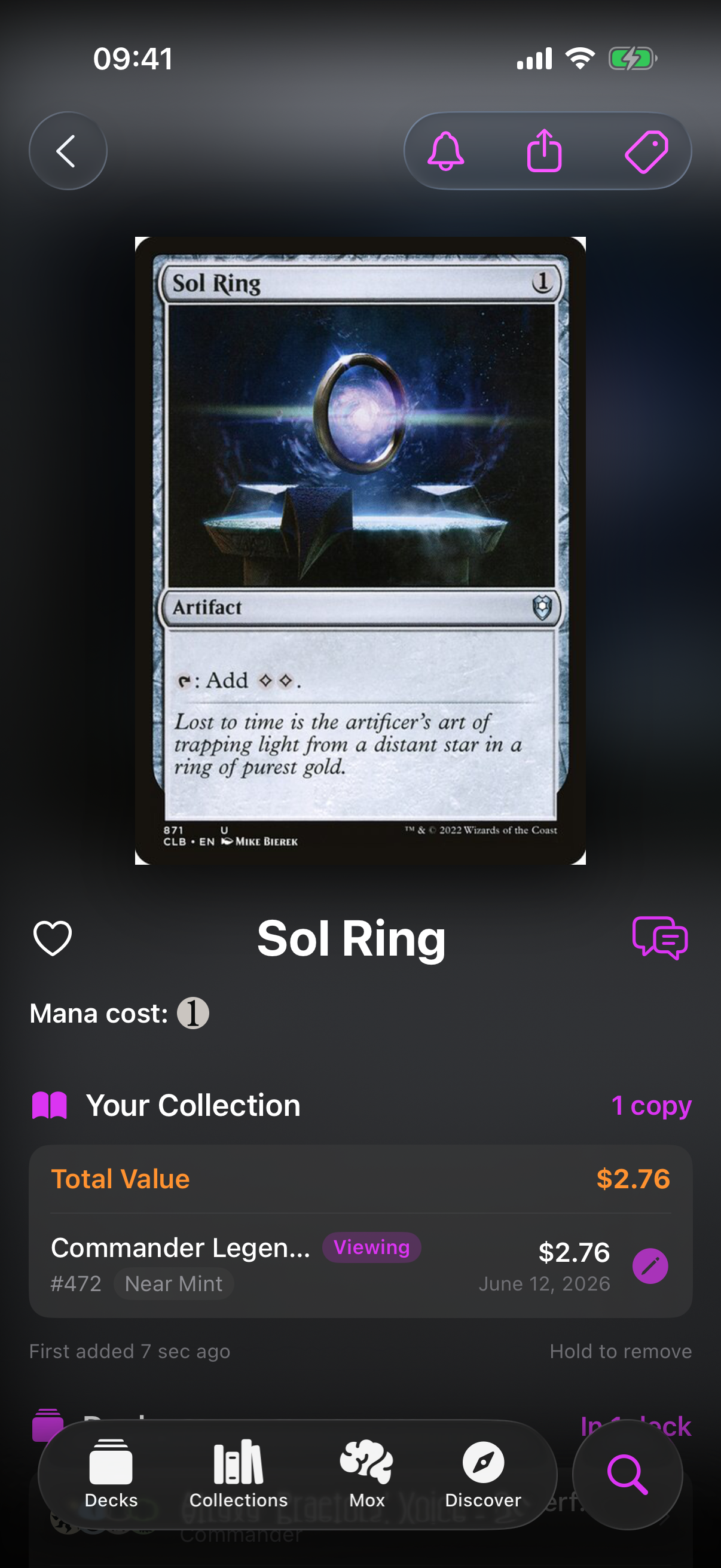
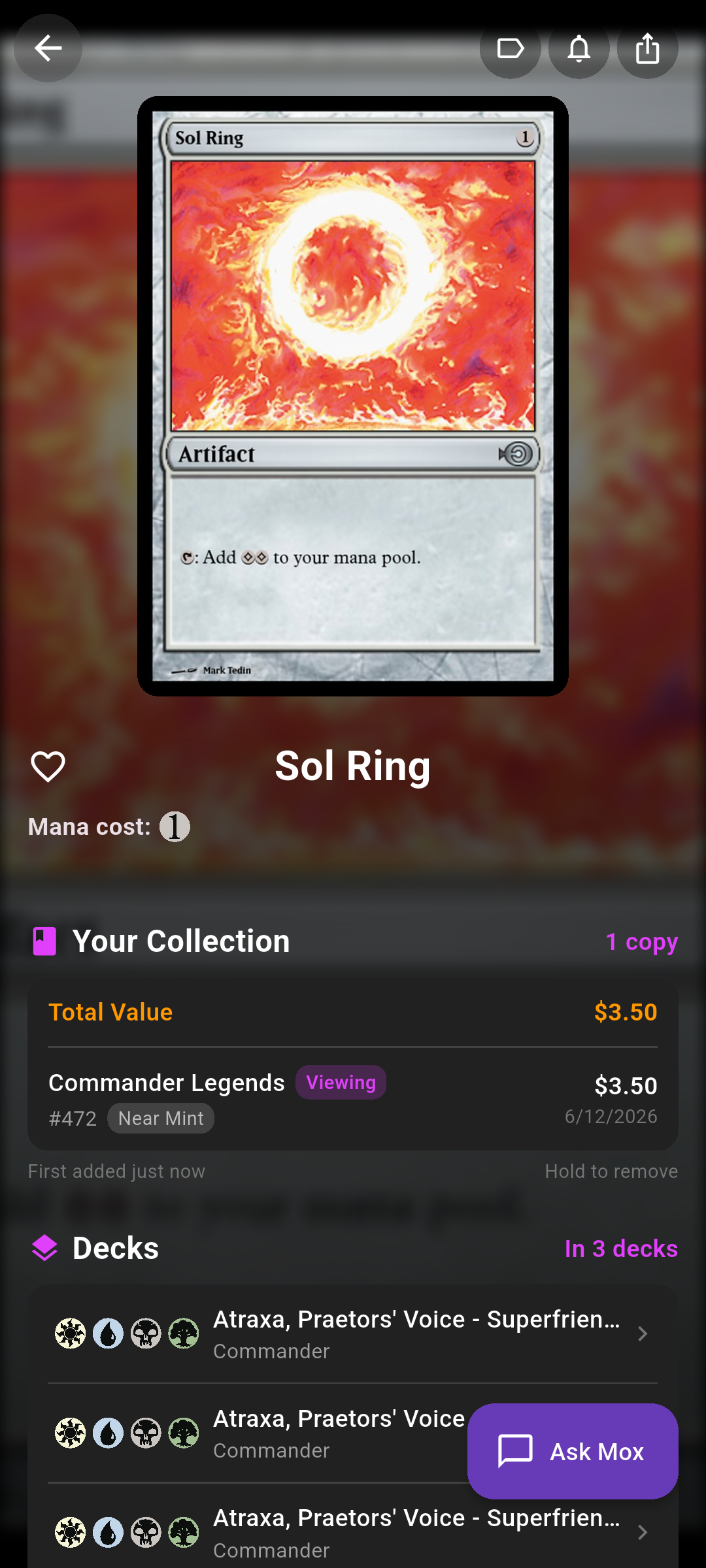
At the top you'll see the full card art, the card name, its Mana cost, power/toughness for creatures, and the rules text under Oracle Text.
-
Double-faced cards
Cards that transform or have two faces show a face switcher to flip between them — a row of pill buttons, one per facea segmented control with a flip animation.
-
Set release guide
If the card's set has a release guide, a Release guide chip appears — tap it to jump straight to that set's guide.
 Drop screenshot here
images/guides/card-detail/01-card-detail.png
Prices & price history
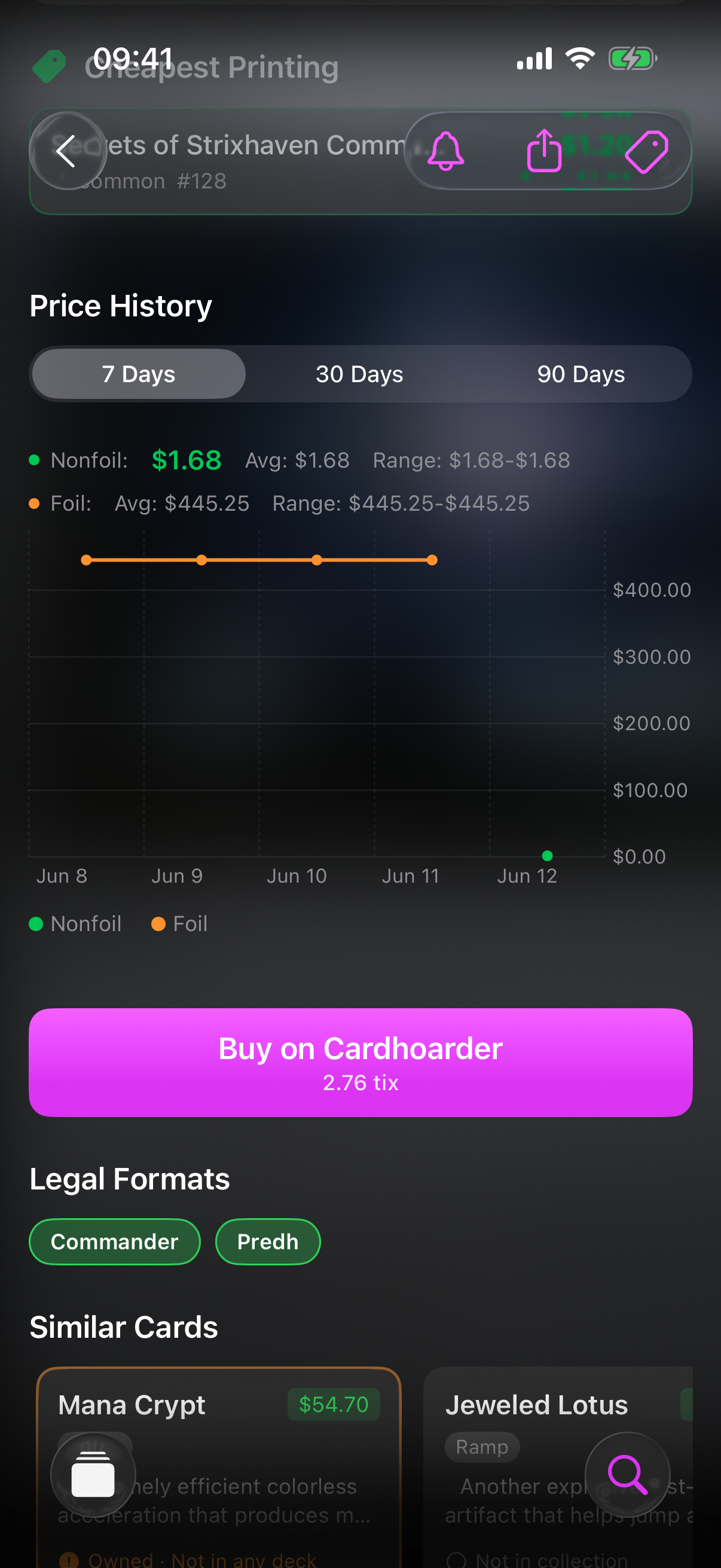
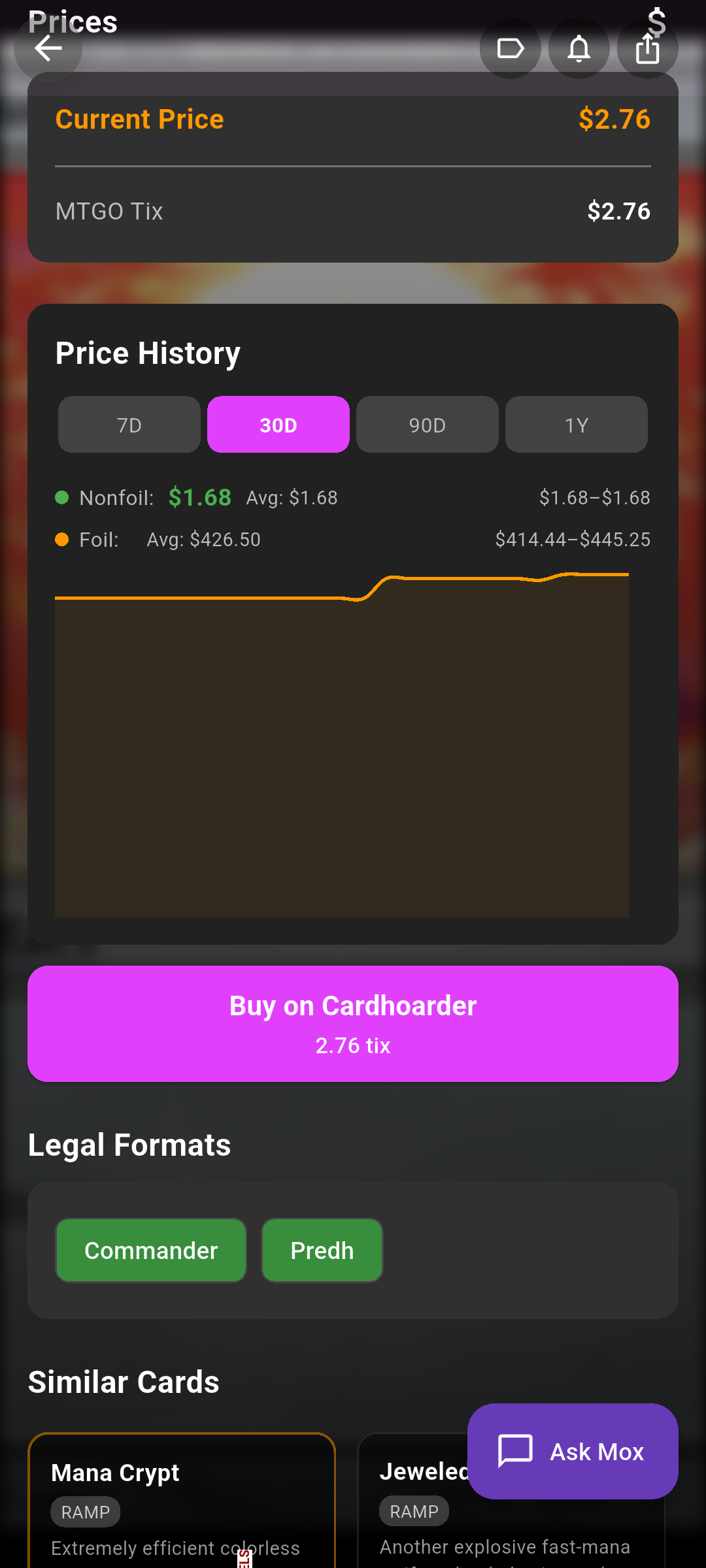
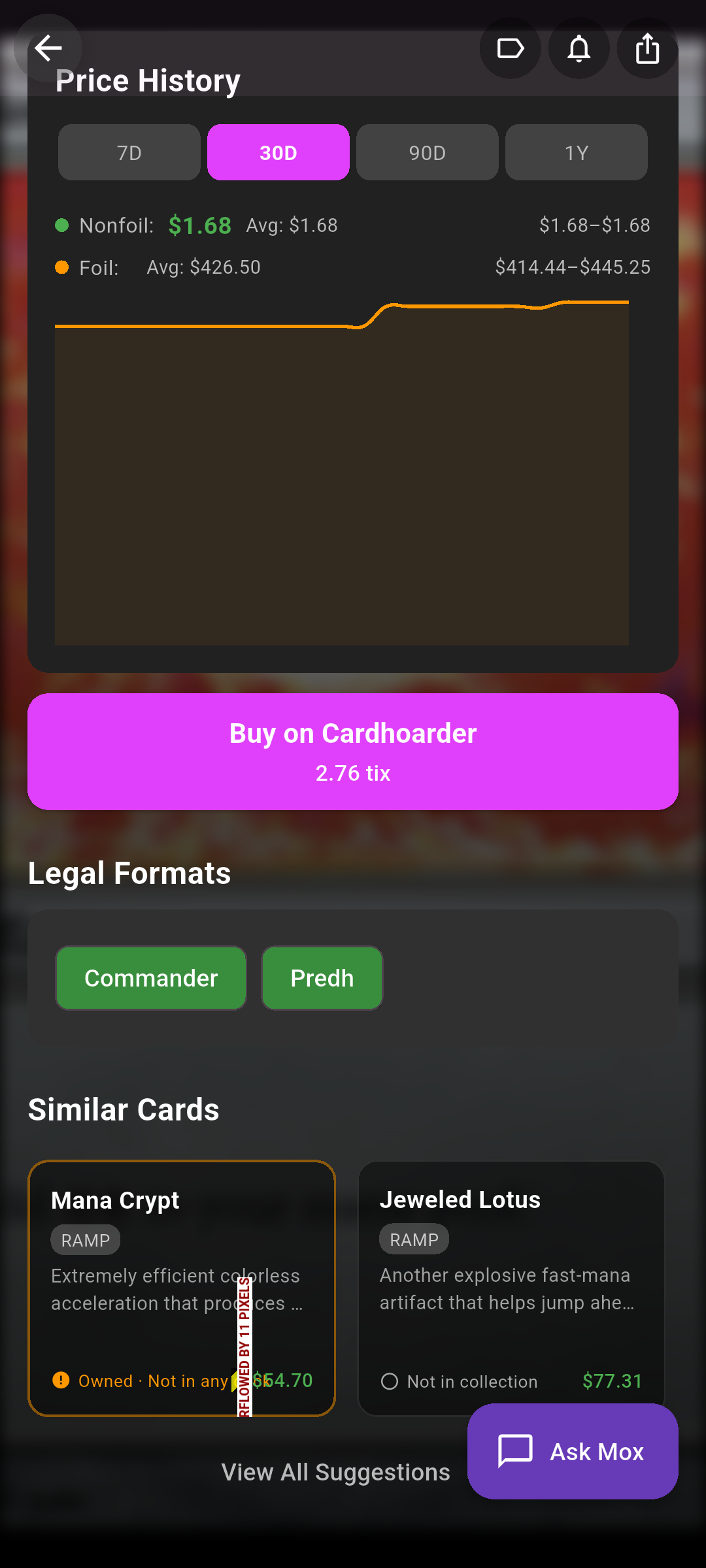
The Prices panel shows the current best price followed by a breakdown: USD, USD Foil, USD Etched, EUR, EUR Foil and MTGO Tix.
On iOS the current price also shows how much it has moved over the selected period, and a Cheapest Printing section highlights the cheapest version with a Save $X badge.
Below that, Price History plots the trend over time (green = non-foil, orange = foil). Pick a time range: the buttons show whichever periods are available for that card.7D, 30D, 90D or 1Y.
 Drop screenshot here
images/guides/card-detail/02-prices.png
Buy from a vendor
Tap a Buy on… button to open the listing at a retailer: TCGPlayer, Cardmarket or Cardhoarder. Each button shows that vendor's price, and only appears when a price is available.
Your copies
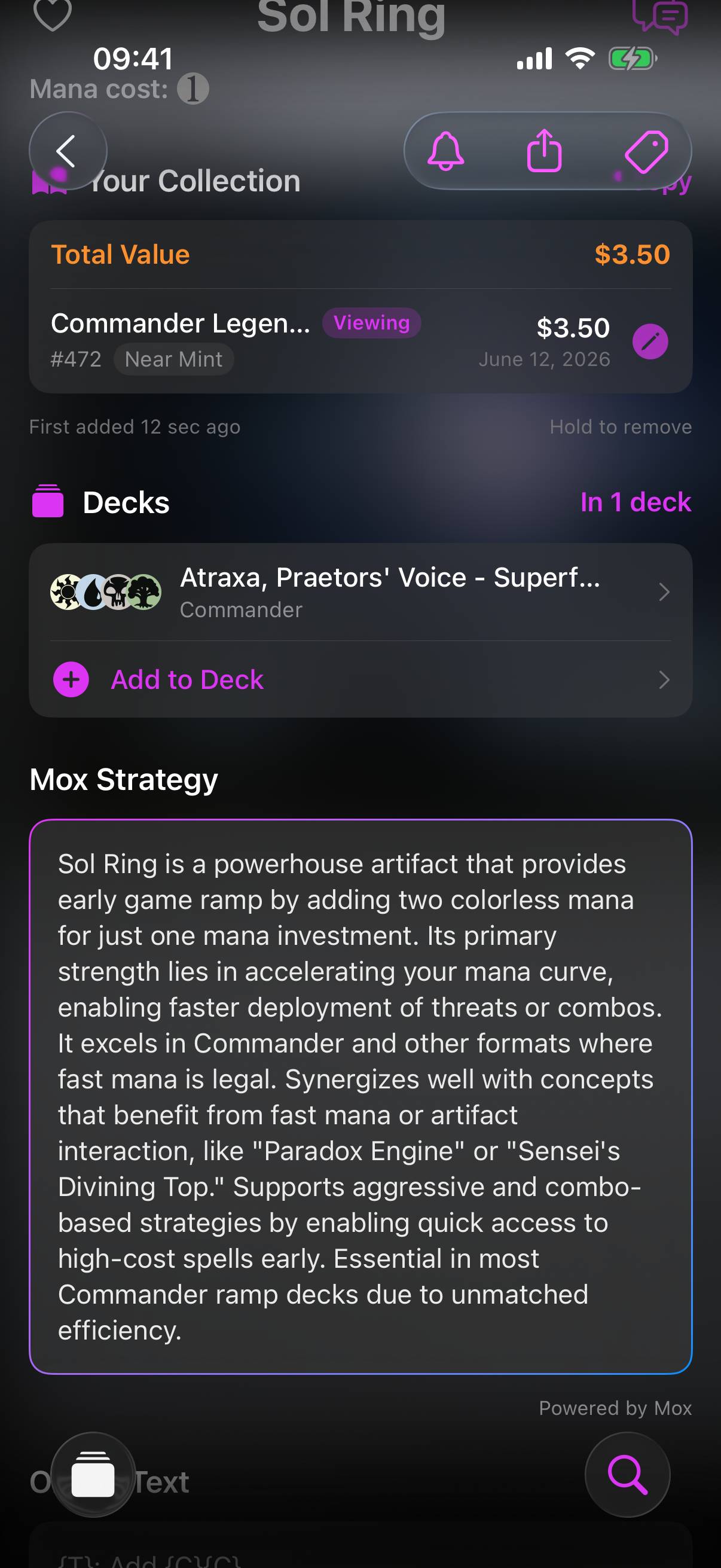
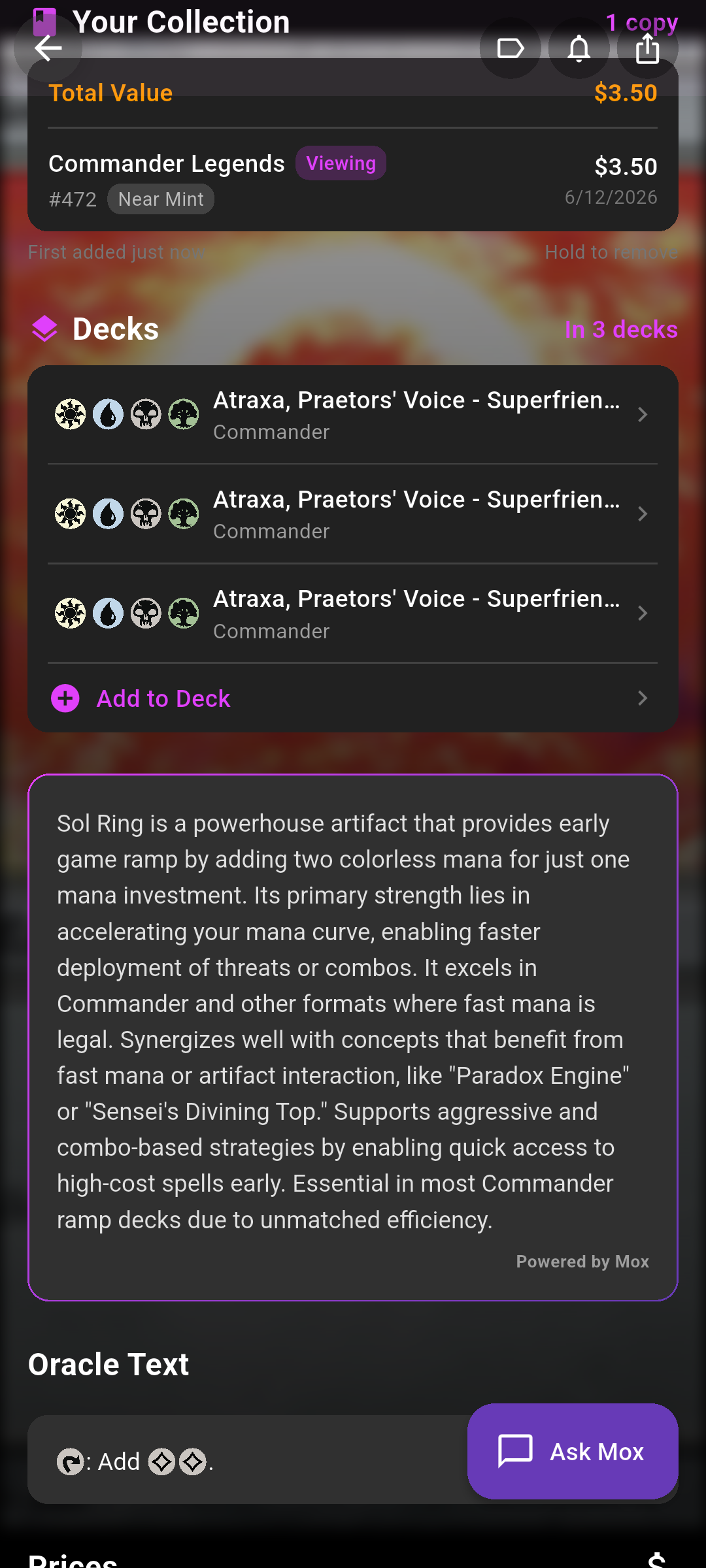
If you own the card, a Your Collection section lists each copy with its set, collector number, foil status, condition and value, plus your total value for that card.
-
Remove a copy
Tap the edit (pencil) on a copy to change its printing, foil or condition, or press and hold a copy and choose Remove from Library.Press and hold a copy, then confirm Remove copy.
 Drop screenshot here
images/guides/card-detail/03-your-collection.png
Add, wishlist, alert & share
The action buttons at the top of the page let you:
-
Add to Library
Choose the printing, foil and condition, then tap Add.Adds the card to your collection straight away.
- Add to Wishlist
Tracks the card on your wishlist (shown when the wishlist is enabled and the card isn't already in your library).
- Add to Deck
In the Decks section, tap Add to Deck and pick which deck to drop it into.
- Set a price alert
Tap the bell to be notified when the price hits your target. See the price-alerts steps in Profile & Settings.
- Favourite & tags
Once a card is in your library you can favourite it and add tags from the Tags menu (which also holds the favourite toggle).(the heart by the name) and add tags from the Tags menu.
- Share
Tap share to send the card's image, type and price.
Ask Mox about a card
Mox can talk through a card's rules, combos and value. Tap the chat-bubble icon next to the card name.Tap the Ask Mox button. The page also shows a short Mox strategy summary for playable cards. Mox chat is a Pro feature, so you'll see the upgrade screen if you're not subscribed.
Similar cards
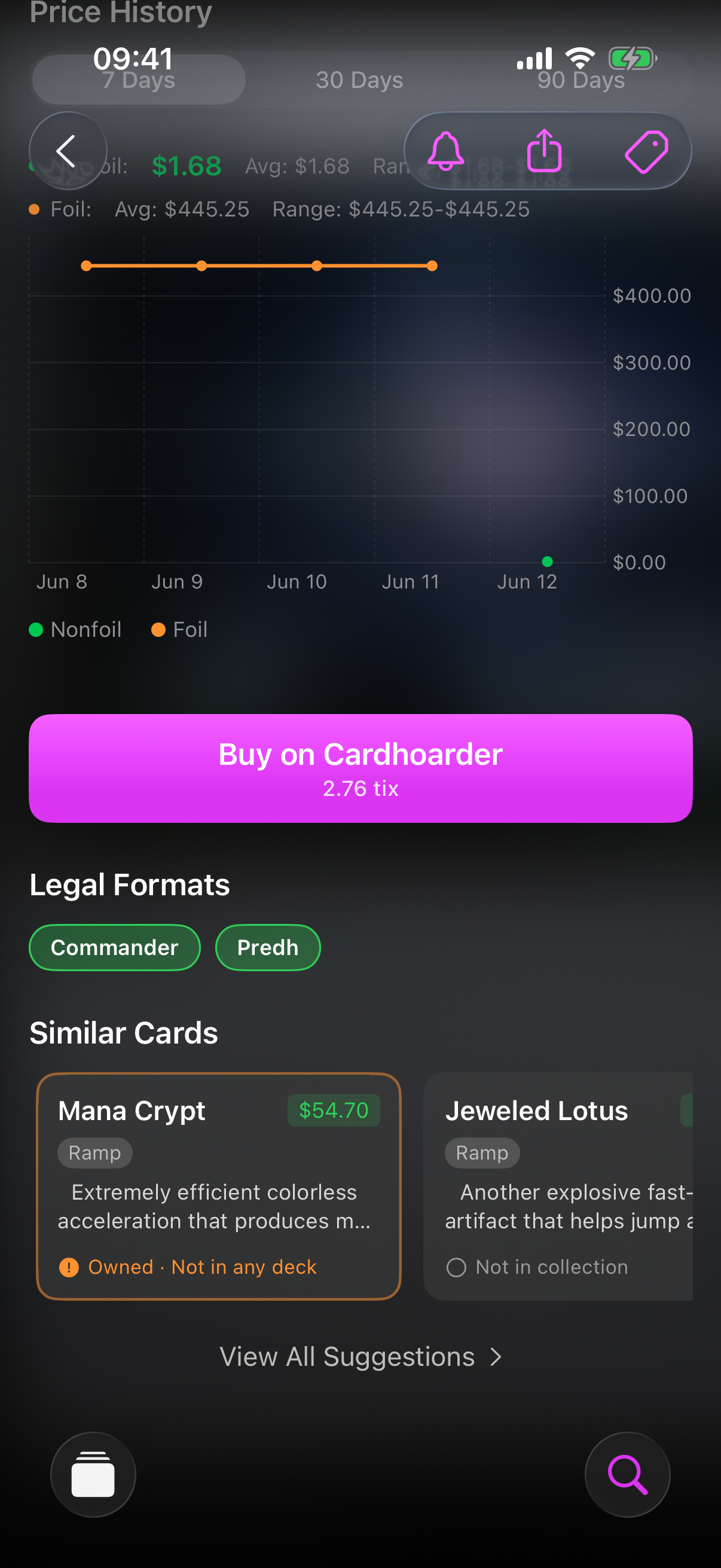
The Similar Cards row suggests cards that play well with or instead of this one, tagged by role (and sometimes Budget Pick), with a badge showing whether you already own each. Tap a suggestion to open it.
If there are several, View All Suggestions opens the full list with a budget filter. On iOS this full list is a Pro feature.
 Drop screenshot here
images/guides/card-detail/04-similar-cards.png
Legal formats
The Legal Formats section shows green chips for every format the card is legal in. Formats where it isn't legal simply aren't listed.