
Price alerts
Set a target price on any card and Compendium will notify you when it drops to that level — perfect for waiting out a spike or snapping up a reprint at the bottom.
On this page
Create an alert
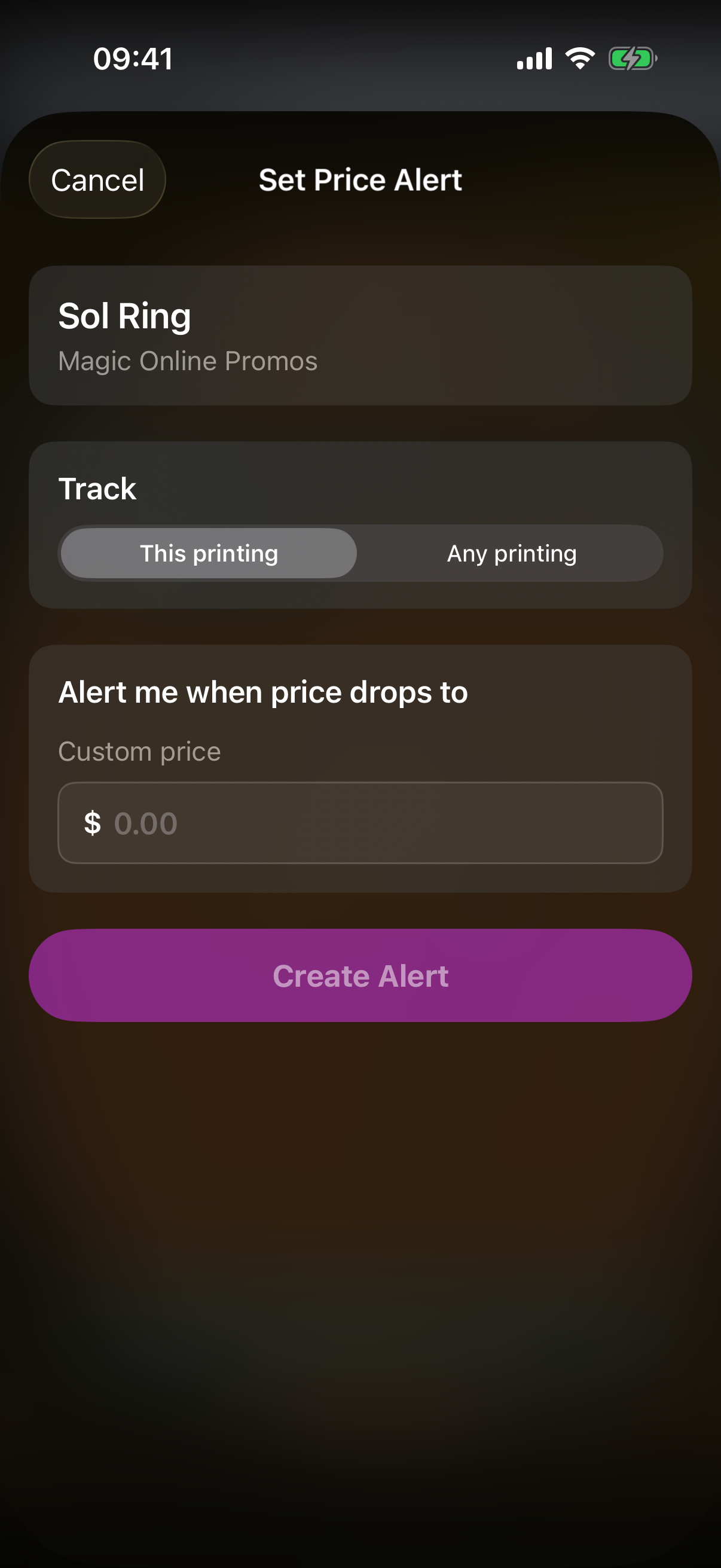
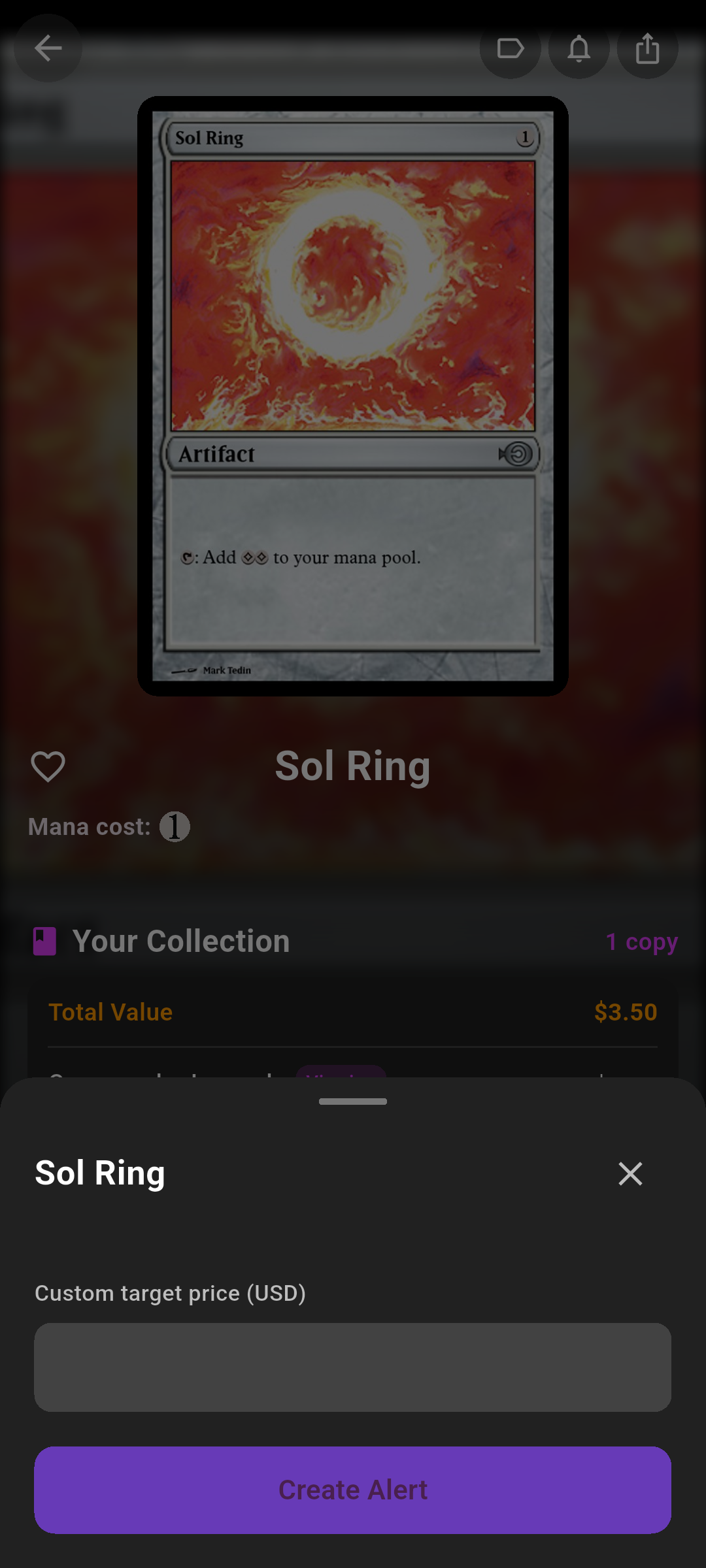
You start a price alert from a card's detail page. Open any card, then tap the bell near the top of the page. The alert sheet slides up pre-filled with the card's name, its set, and its current price.
-
Open the card
Tap a card anywhere in the app to open its detail page — from search, your library, a deck, or your wishlist.
-
Tap the bell
Tap the bell button in the action row to open the Set Price Alert sheet.Tap the bell (notifications) button to open the price alert sheet.
 Drop screenshot here
images/guides/price-alerts/01-create-sheet.png
Target price & suggestions
Type the price you want to be alerted at into the Custom price field. To save typing, the sheet offers quick suggestions under Alert me when price drops to:
- 90-day low — the lowest the card has been over the last 90 days (only shown when that's below the current price).
- 20% below current — twenty percent under today's price.
Tap a suggestion to drop it into the field, then adjust if you like. The target must be a number greater than zero.
Printing, foil & scope
When you open the alert from a specific printing, you can choose how broadly to watch the price:
-
This printing vs Any printing
Use the This printing / Any printing control. This printing watches only the exact set and collector number you opened; Any printing watches the cheapest version across all printings.
-
Foil
If you opened the card on its foil view, the alert tracks the foil price and shows a Foil tag in the header.When a foil price is available, flip the Track foil price switch to watch the foil price instead.
-
Create the alert
Tap Create AlertCreate Alert to save it. The sheet closes and the alert starts watching.
Free limit & Pro
Free accounts can keep up to 3 active price alerts at once. When you try to create a fourth, Compendium shows the Compendium Pro upgrade screen.
Manage your alerts
All your alerts live in one place: open Profile and find the Price Alerts section. Each row shows the card name, the printing (or Any printing), your target price, and the alert's status — green for active, orange for triggered.
-
Delete an alert
Swipe a row from right to left and confirm to remove it. A red Delete action appears as you swipe.Swiping reveals a red delete background.
When an alert triggers
When a card reaches your target, Compendium sends you a push notification and the alert is marked triggered (shown in orange in the Price Alerts list).
On iOS you can re-use a triggered alert without recreating it: swipe the row from left to right and tap Re-arm to set it back to active so it watches again.
On Android, delete a triggered alert and create a fresh one from the card's detail page if you want to keep watching it.