Profile & settings
Your profile is where you tell Mox about yourself, manage notifications and price alerts, and review what Mox remembers about your play style.
On this page
Open your profile
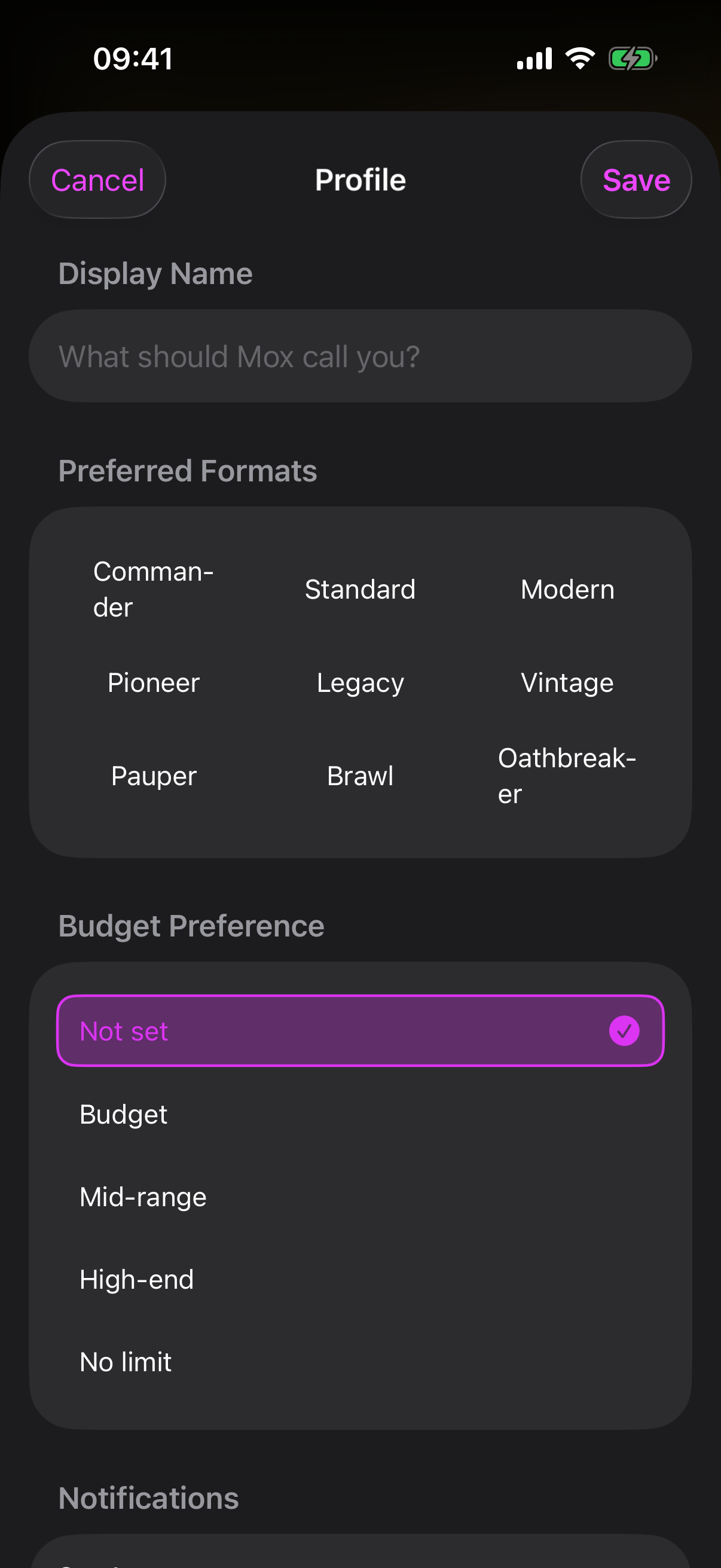
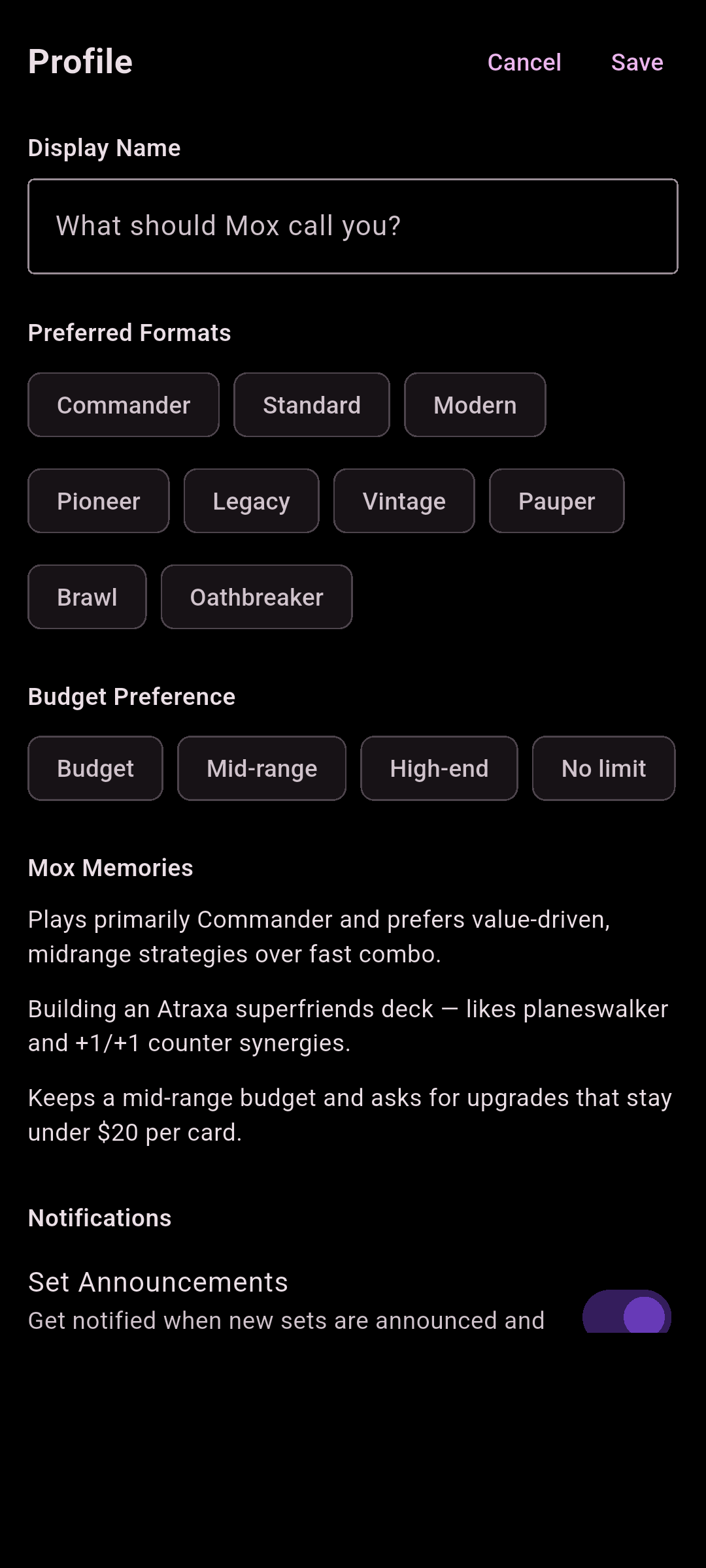
Tap the person icon to open the Profile sheet. It's on the Mox and Decks screens — at the top-left.in the top-right. When you're done, tap Save (or Cancel to discard).
 Drop screenshot here
images/guides/profile/01-profile.png
Tell Mox about you
These preferences help Mox tailor its answers and deck suggestions.
-
Display name
Under What should Mox call you?, enter the name you'd like Mox to use.
-
Preferred formats
Tap the formats you play — Commander, Standard, Modern, Pioneer, Legacy, Vintage, Pauper, Brawl, Oathbreaker.
-
Budget preference
Pick Budget, Mid-range, High-end or No limit. Choose Not set to clear it.Tap the selected option again to clear it.
-
Save
Tap Save to keep your changes.
Notifications
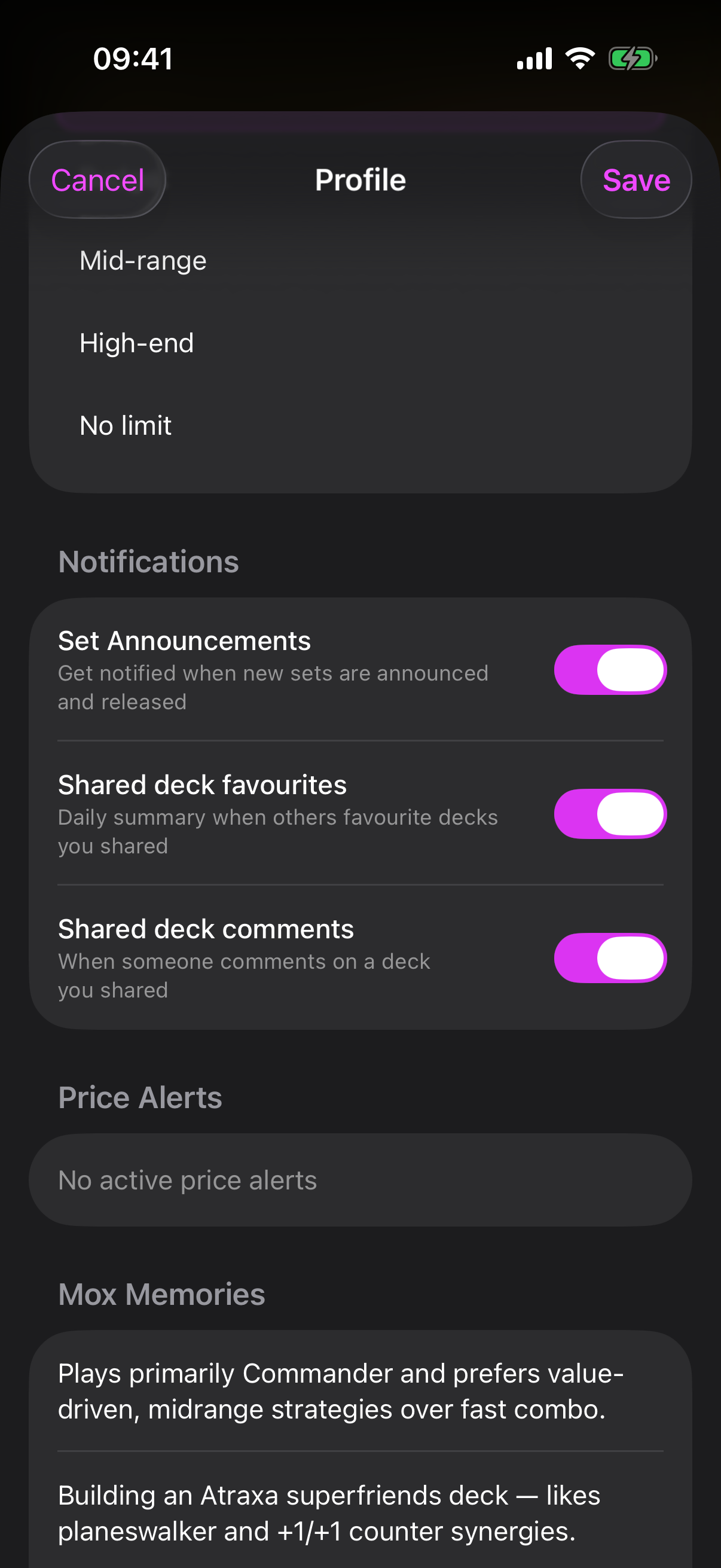
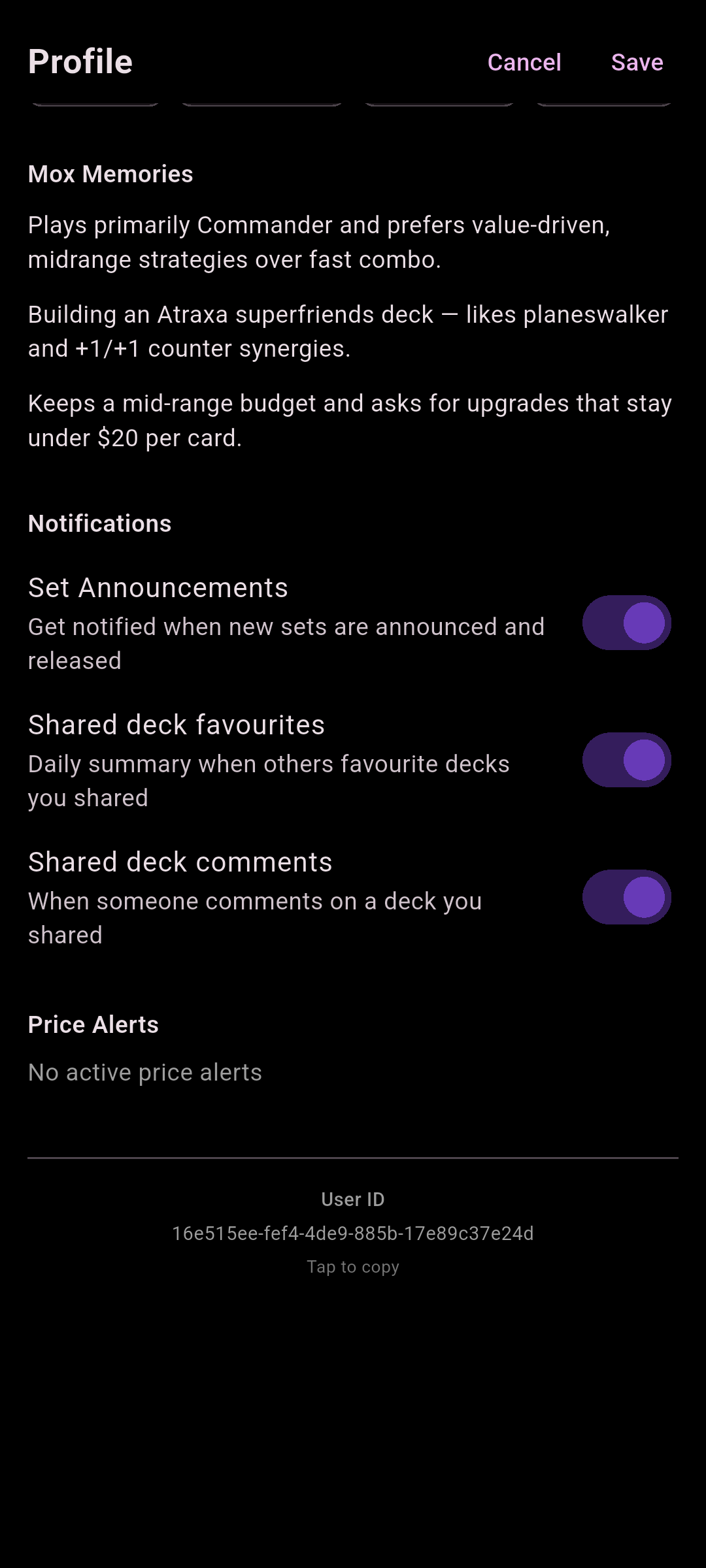
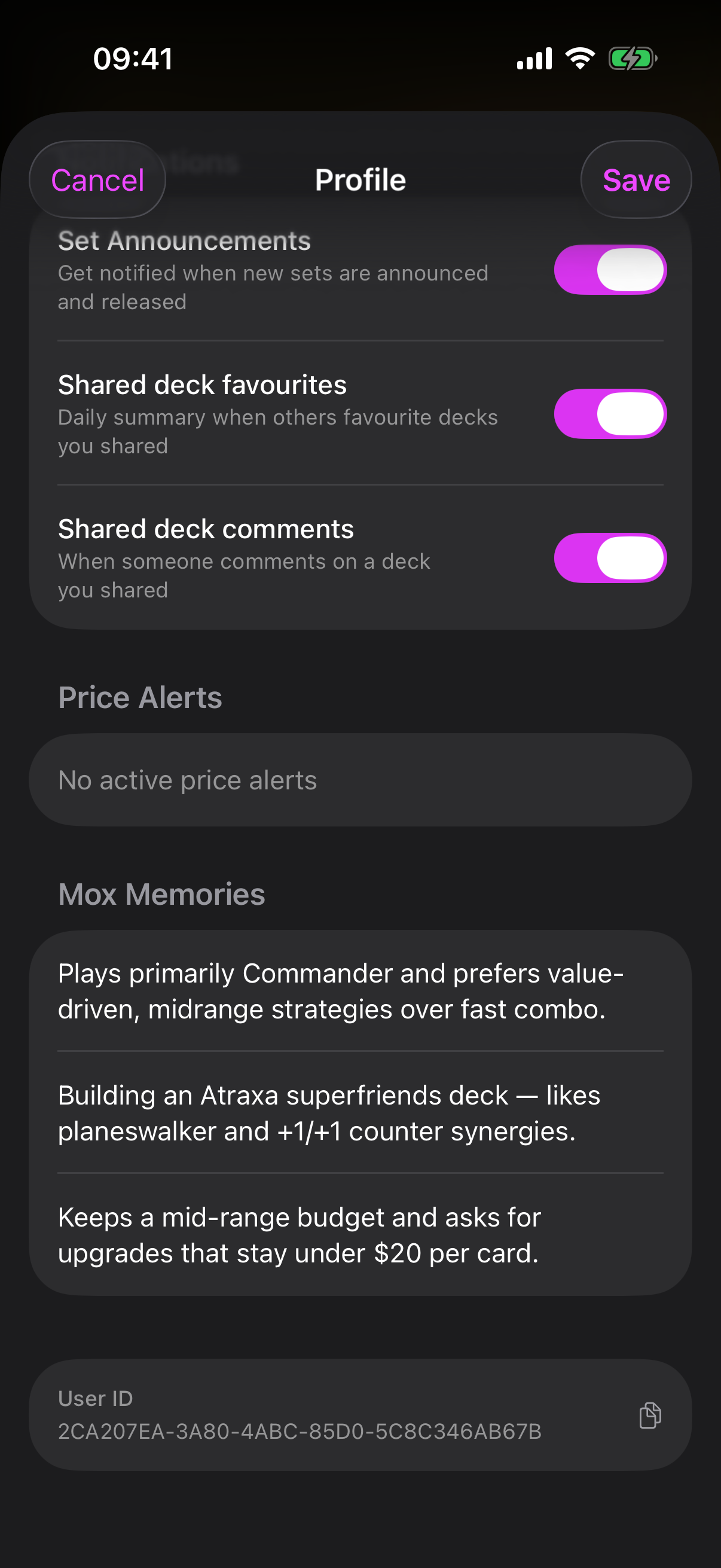
The Notifications section has three toggles:
 Drop screenshot here
images/guides/profile/02-notifications.png
Price alerts
The Price Alerts list shows every alert you've set — the card, its set (or Any printing), your target price, and whether it's Active or Triggered.
- Delete an alert
Swipe a row to delete it.
- Re-arm a triggered alert
Swipe a triggered alert the other way and tap the bell to make it active again.
Mox memories
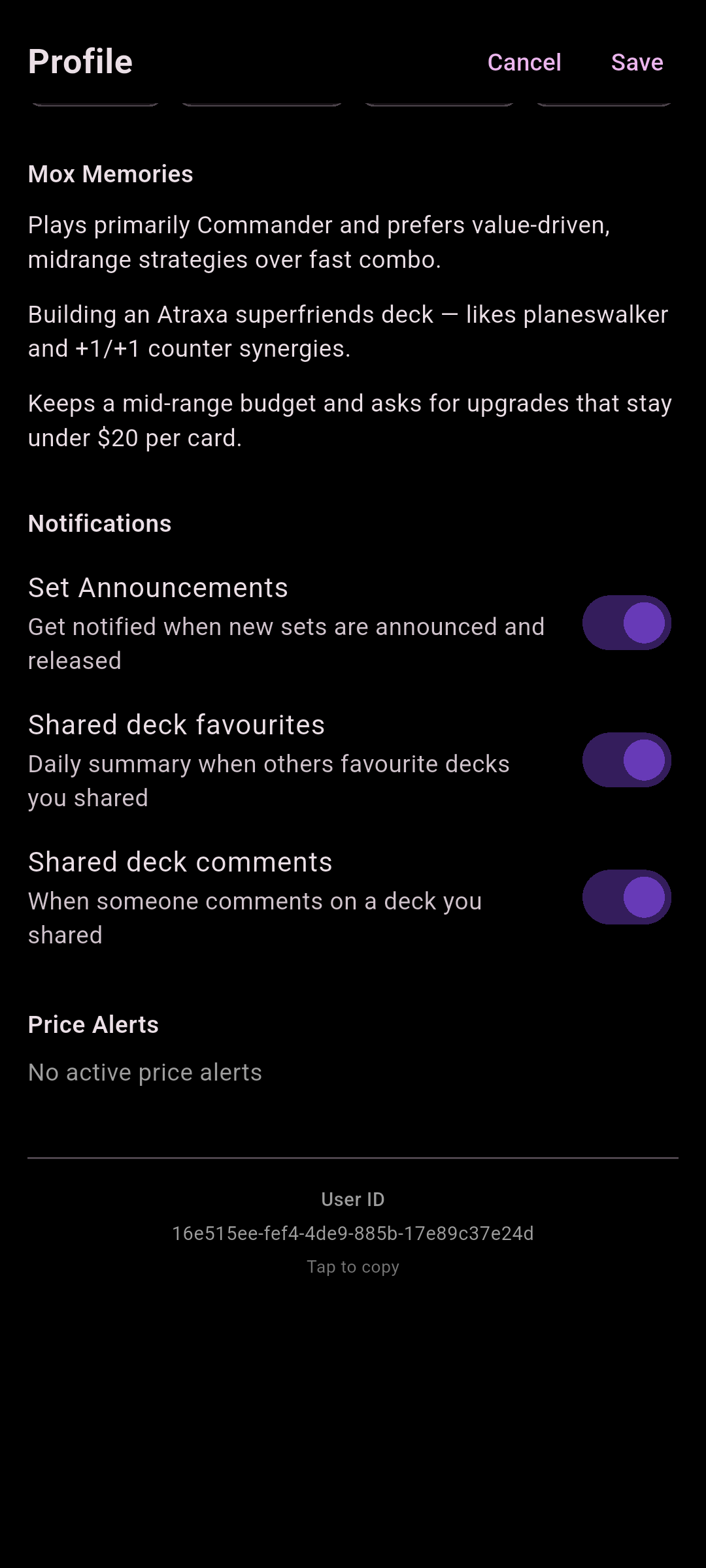
Mox Memories are the things Mox has picked up about your play style and favourite strategies. You can review them here and swipe any one to delete it. There's no "add" button — Mox creates memories as you chat. If it's empty, keep chatting and Mox will start remembering.
 Drop screenshot here
images/guides/profile/03-mox-memories.png
Refer a friend
When the referral programme is running, a Refer a Friend option appears here so you can share Compendium. If you don't see it, it isn't currently enabled for your app.
Your User ID
At the bottom of the sheet is your User ID. Tap it to copy — handy if you ever need to reference your account when contacting support.