
Searching for cards
Find any Magic card in seconds, then narrow it down with filters for format, colour, type, mana value and set.
On this page
Open Card Search
From anywhere in the app, tap the Search tab at the bottom of the screen (the magnifying-glass icon)(the list icon). You’ll land on the Card Search screen.
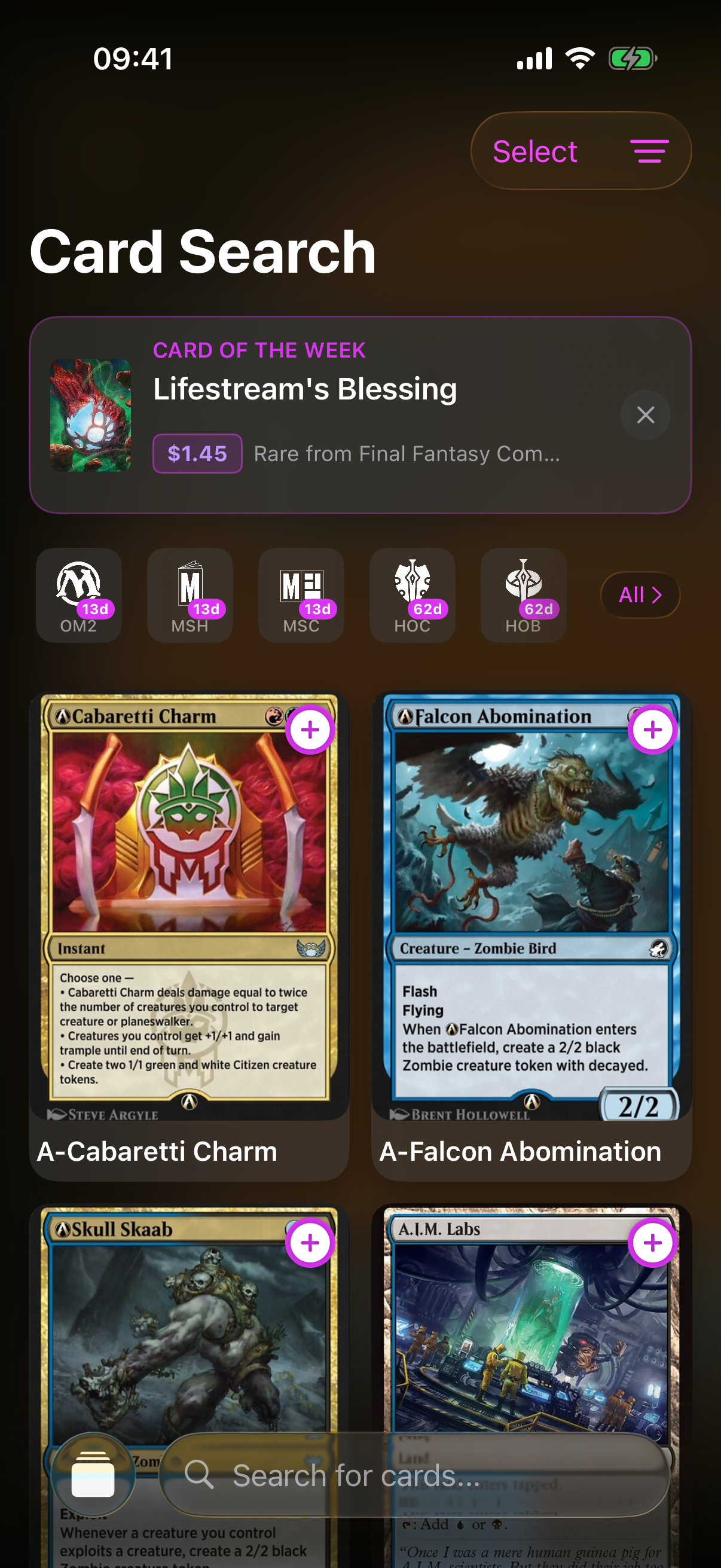
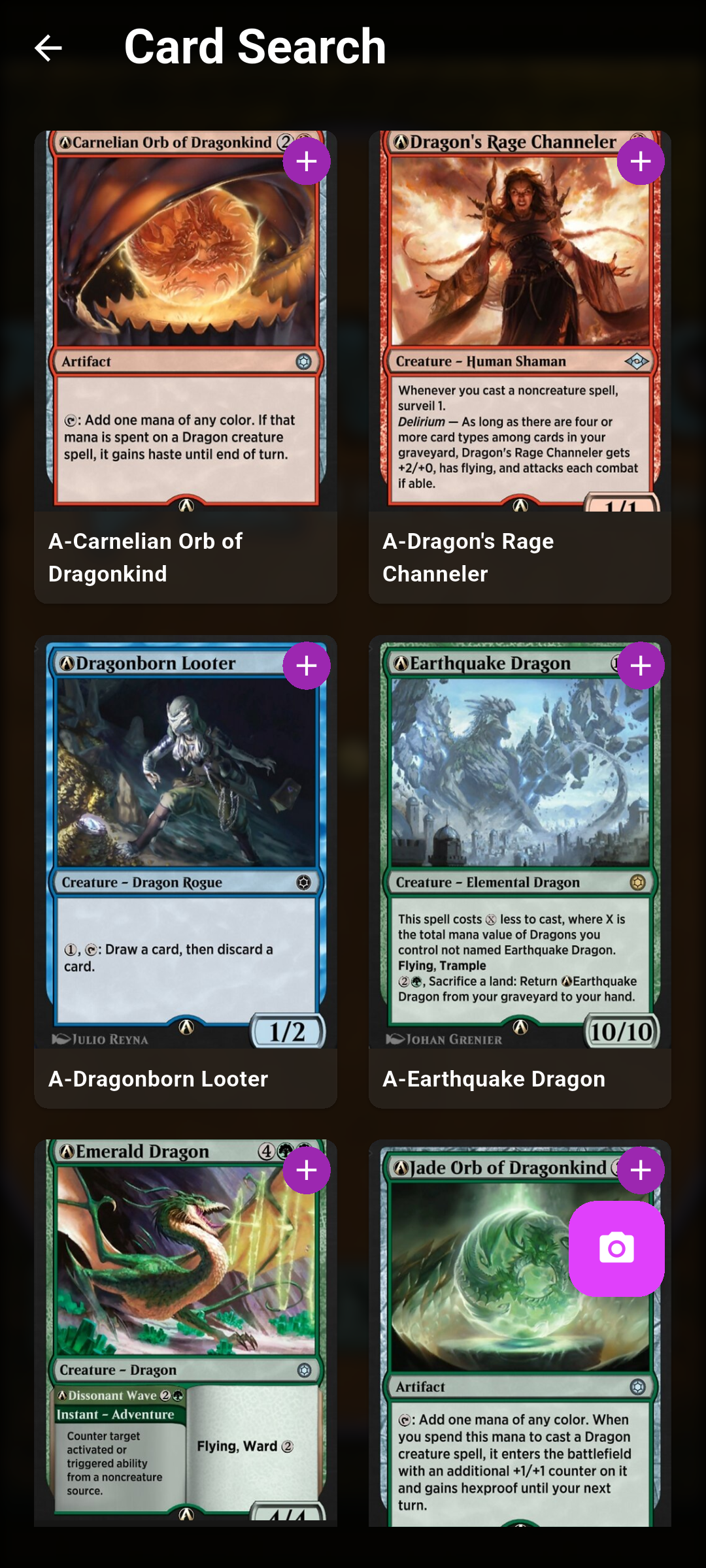 Screenshot
images/screenshot-card-search.png
Search by name
-
Tap the search bar
At the top of the screen, tap the field that reads Search for cards…
-
Type a card name
Start typing — results update as you go and appear in a two-column grid of card images.
-
Scroll for more
Keep scrolling to load more matches automatically. If nothing matches, you’ll see No Results Found — check your spelling or try a different term.
Open a card’s details
Tap any card image to open its full detail page — mana cost, type line, oracle text, printings, prices and related cards.
Filter your results
-
Open the filter sheet
Tap the filter icon in the top-right of the nav bar.Tap the slider (tune) icon in the search-bar row. A purple badge shows how many filters are active.
-
Choose your filters
The Filters sheet has five sections:
What you can filter by
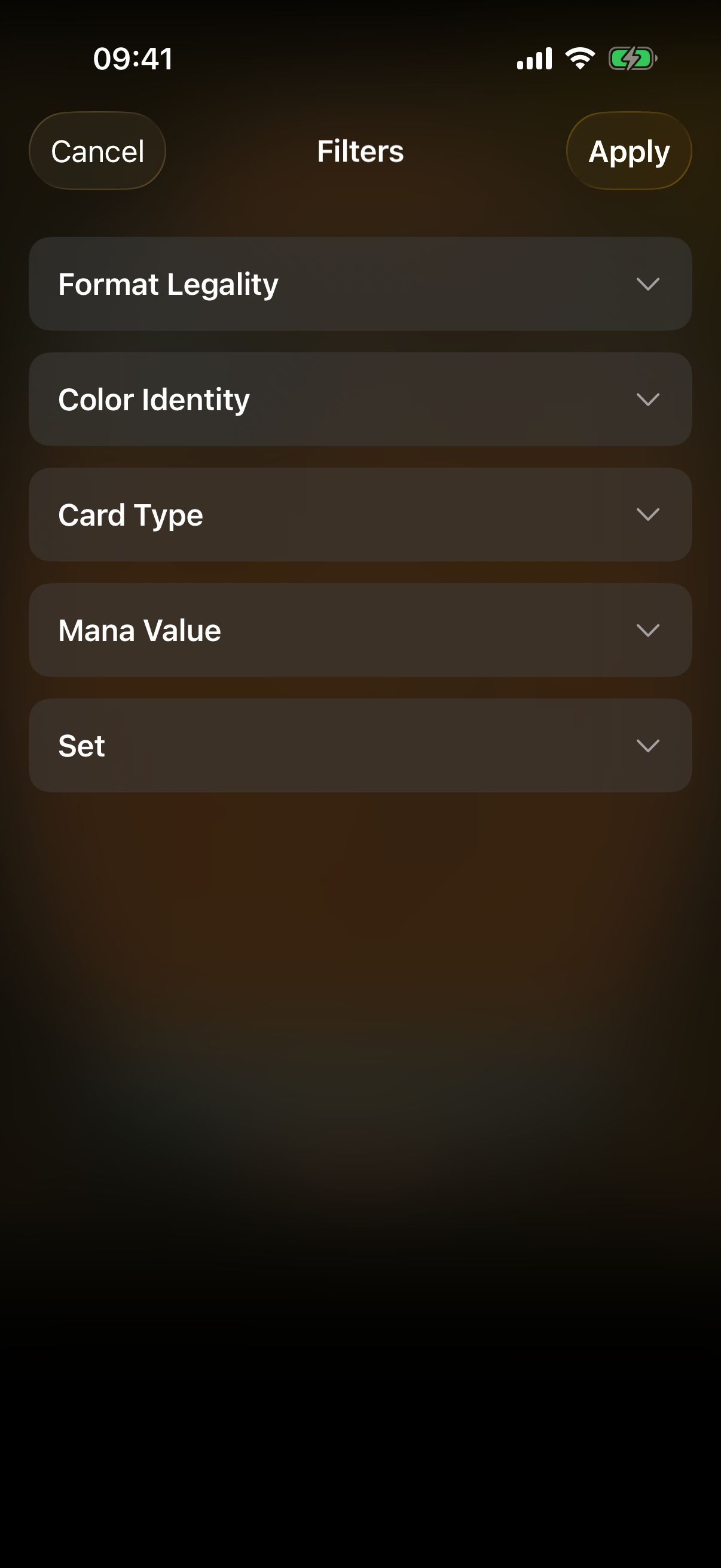
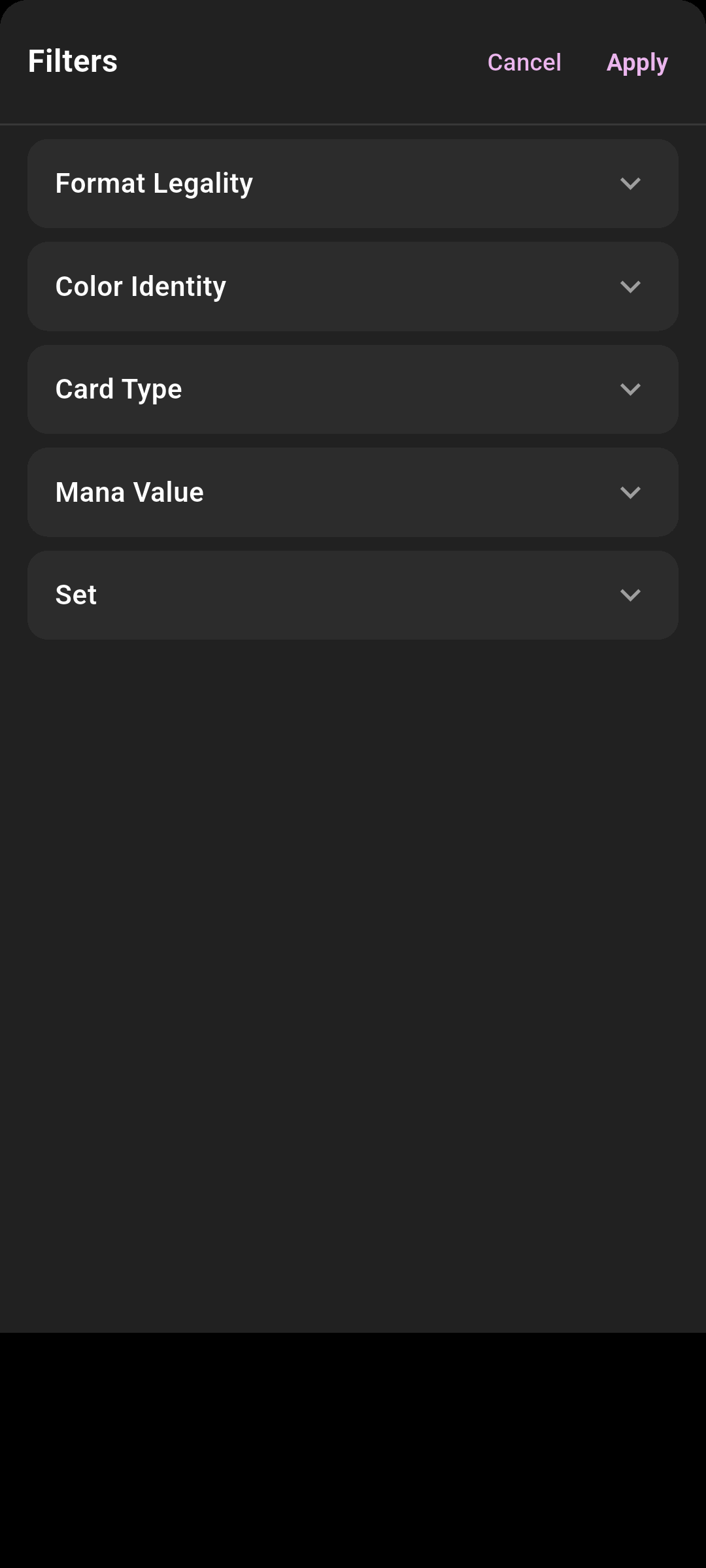 Drop screenshot here
images/guides/card-search/05-filters-sheet.png
Quick-add a card
You don’t need to open a card to add it. Tap the purple plus button in the corner of any card image, then choose:
- Add to Library
Saves the card to your collection. On iOS you'll then pick the printing, foil and condition.
- Add to Deck…
Pick which deck to drop it into.
- Add to Wishlist
Tracks it on your wishlist (when the wishlist is enabled).
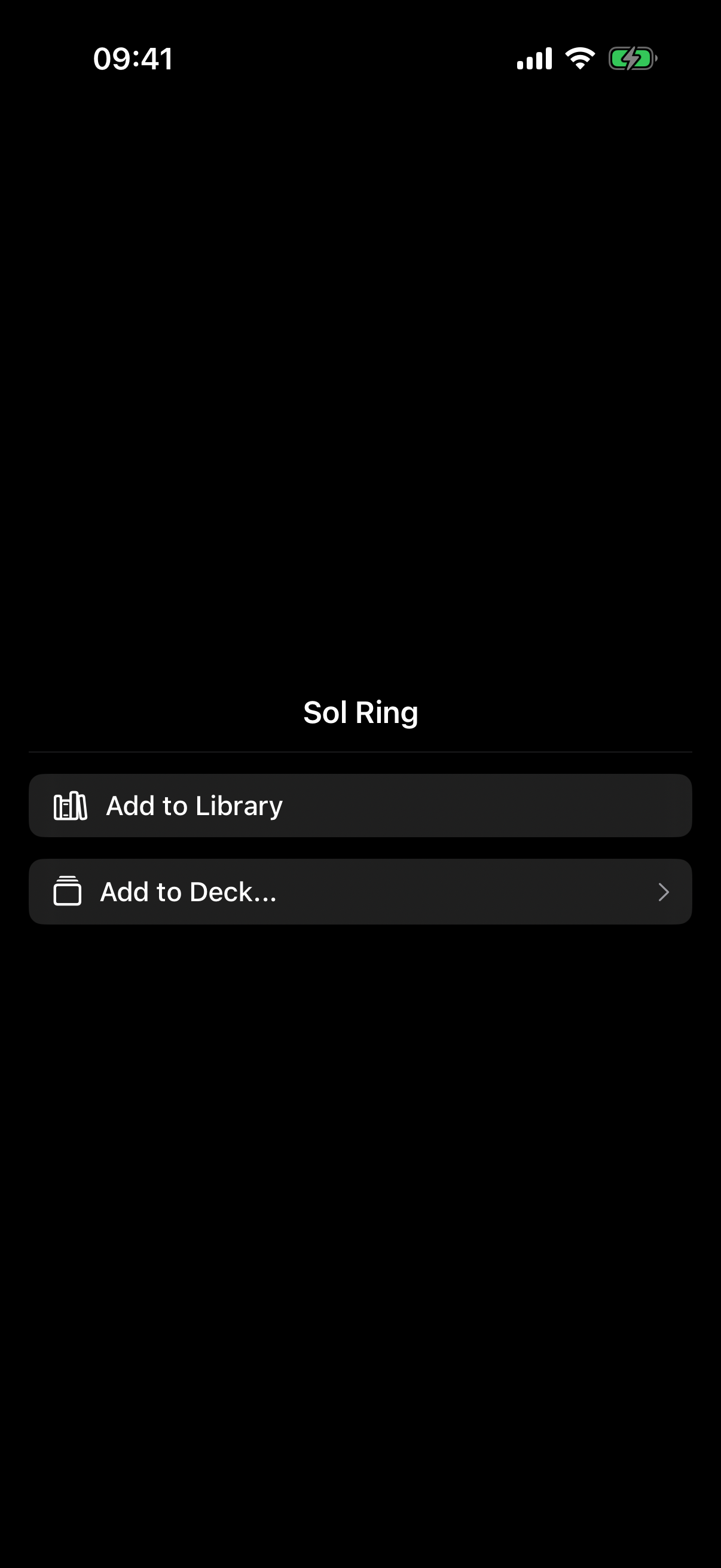
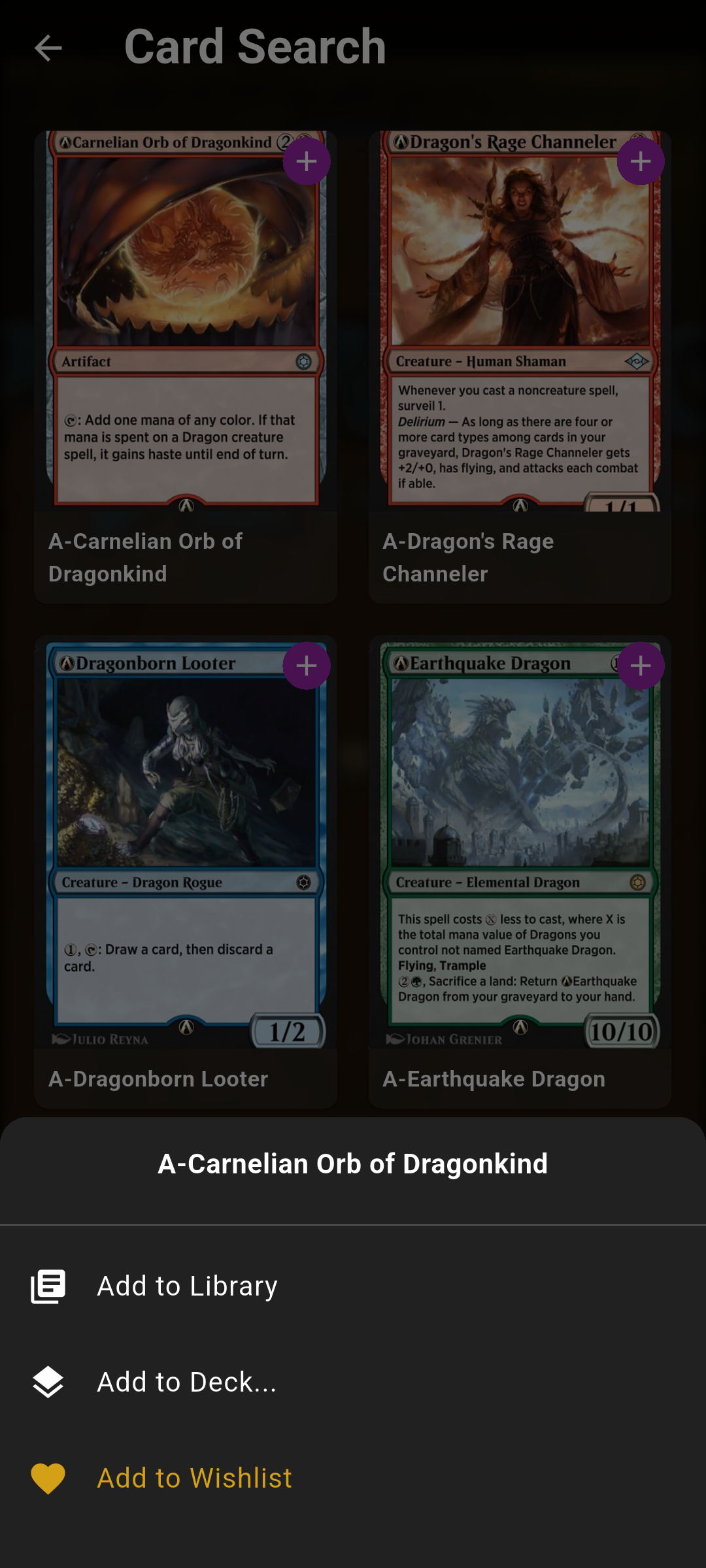 Drop screenshot here
images/guides/card-search/06-quick-add.png
Add several cards at once
-
Enter selection mode
Tap Select in the top-right toolbarin the search/filter row (or press and hold any card). A checkbox appears on every card.
-
Tick the cards you want
Tap each card to select it — the count shows at the bottom as X selected.
-
Choose a destination
Use the bottom bar to send them all to Library, a Deck, or your Wishlist in one go. Tap Cancel to leave selection mode.