Logging your games
Record the result and details of every game, then see your win rate, streaks and trends per deck.
On this page
Log a game
-
Start from a deck or the Game Log
Open a deck and tap Log Game (or tap the plus on the Game Log screen).
-
Or save straight from the life counter
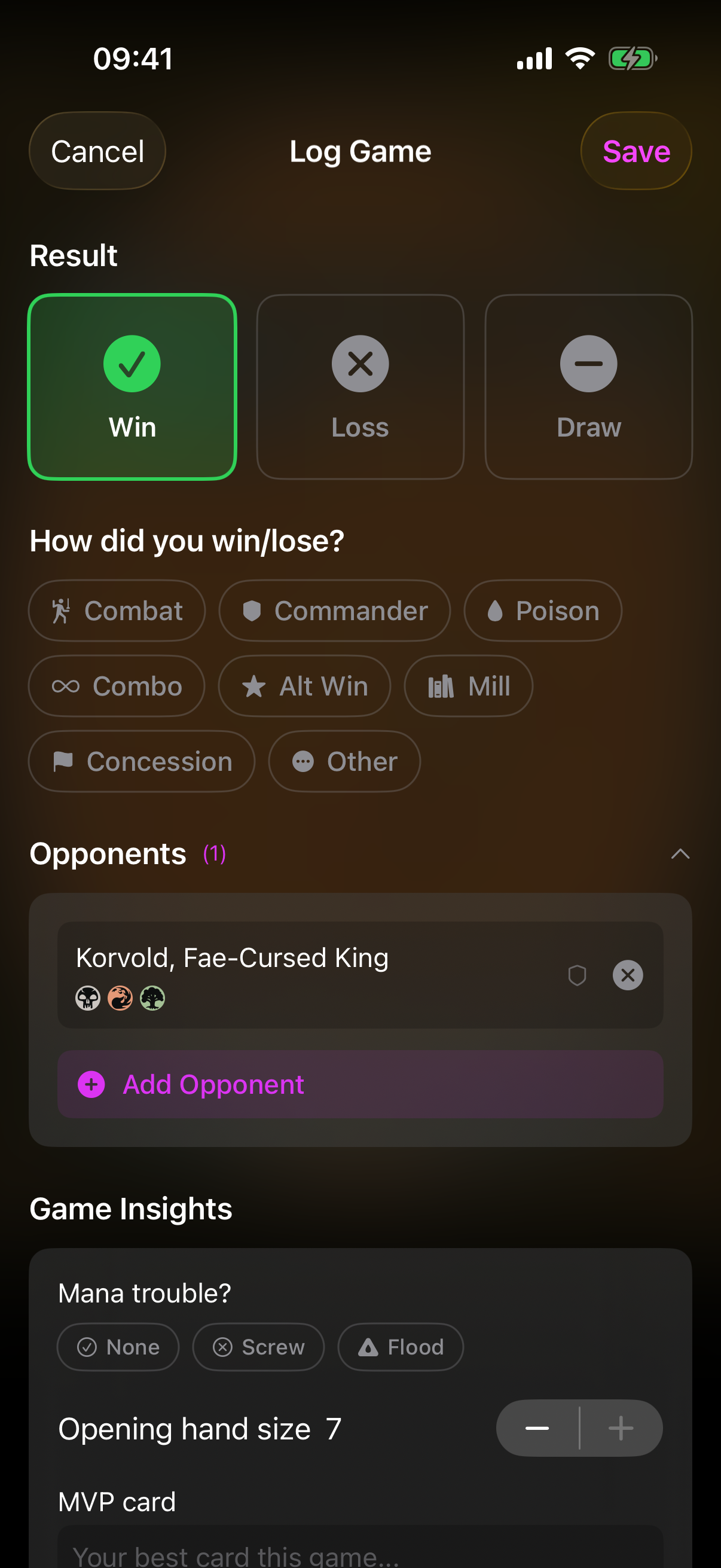
Finish a game in the life counter and choose Save to Game Log — the form is pre-filled from the game.
 Drop screenshot here
images/guides/game-log/01-log-game.png
What you can record
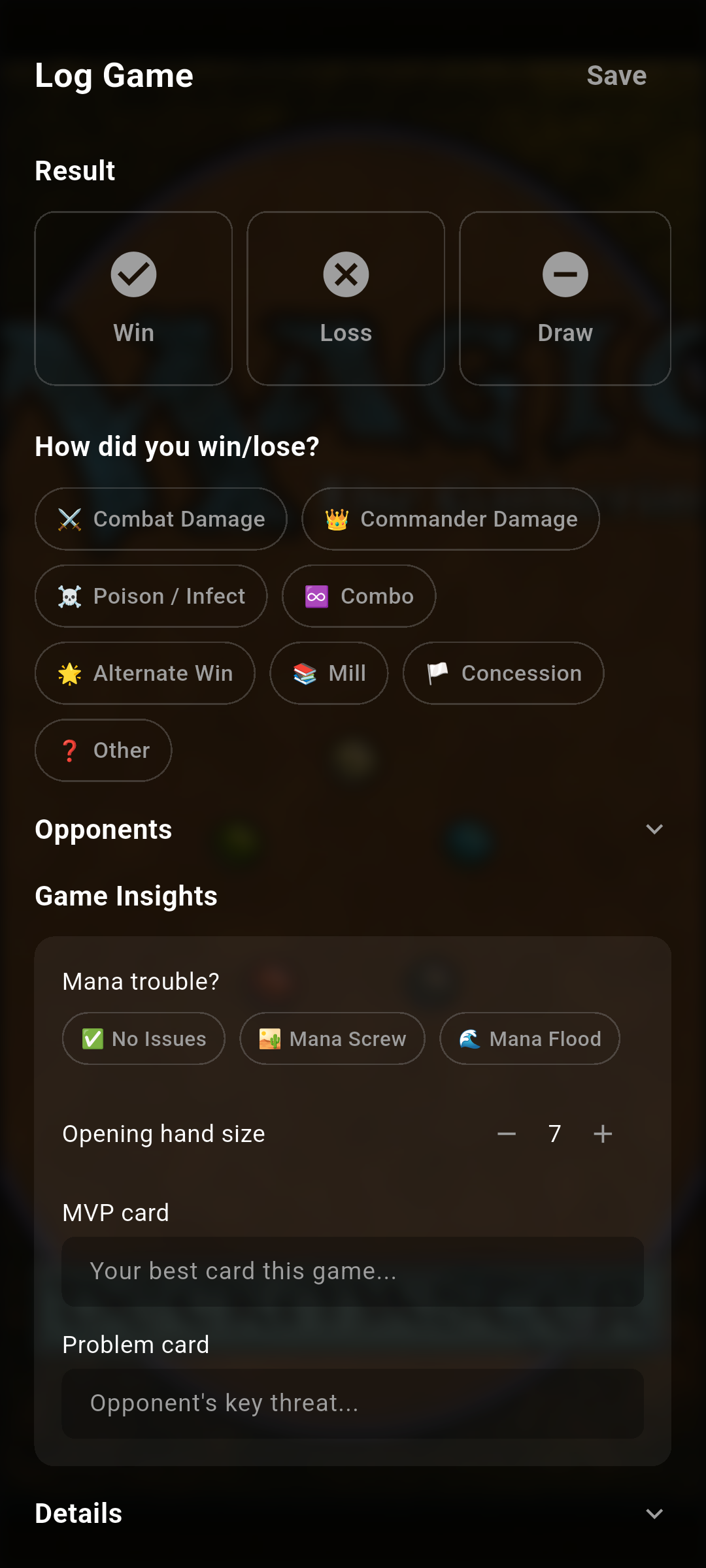
The form captures as much or as little detail as you like — only the result is required.
Tap Save to store the game.
Your record on a deck
On a deck, the Game Log section shows your Games, Win Rate and W-L record, with a Win Rate Trend chart. Tap View Game History for the full log.
The full Game Log
The Game Log screen gathers everything you've recorded into stats, trends and a filterable history.
Edit, delete or share
Tap a game to edit it (Edit Game → Update).
Press and hold an entry for Share or Delete.
Each row has a Share icon — tap it to share that result. There's no delete on the Game Log screen.
Share generates a shareable result image you can post or send.
Share a game with your pod
The Share icon on a logged game doesn't just make an image — it can invite your pod-mates to fill in their own side of that same game.
-
Open Share Game
Tap Share on a game to open the Share Game sheet.
-
Pick who to share with
Tap Pick pod mates and choose who was at the table. For each one, you can optionally use Assign to an opponent to link them to the right seat.
-
Send it
Tap Share. Each pod-mate gets their own copy of the game to complete in their own words.
Games shared with you land in Shared With You — tap the inbox icon on the Decks screen header. Open one to fill in your side; swipe an entry to Dismiss it.
Ask Mox about your performance
Open a deck and, in its Game Log section, tap Ask Mox about your performance for an AI breakdown of what's working with that deck once you've logged a few games. (This button lives on the deck's game-log section, not the main Game Log screen.)