Life counter & playing a game
Track life, commander damage and counters during a game — start a quick game or one tied to a deck.
On this page
Quick Start a game
In the Decks tab, tap the game-controller button in the top-right to open Quick Start — pick a format, life total, player count and layout, then tap Start Game.
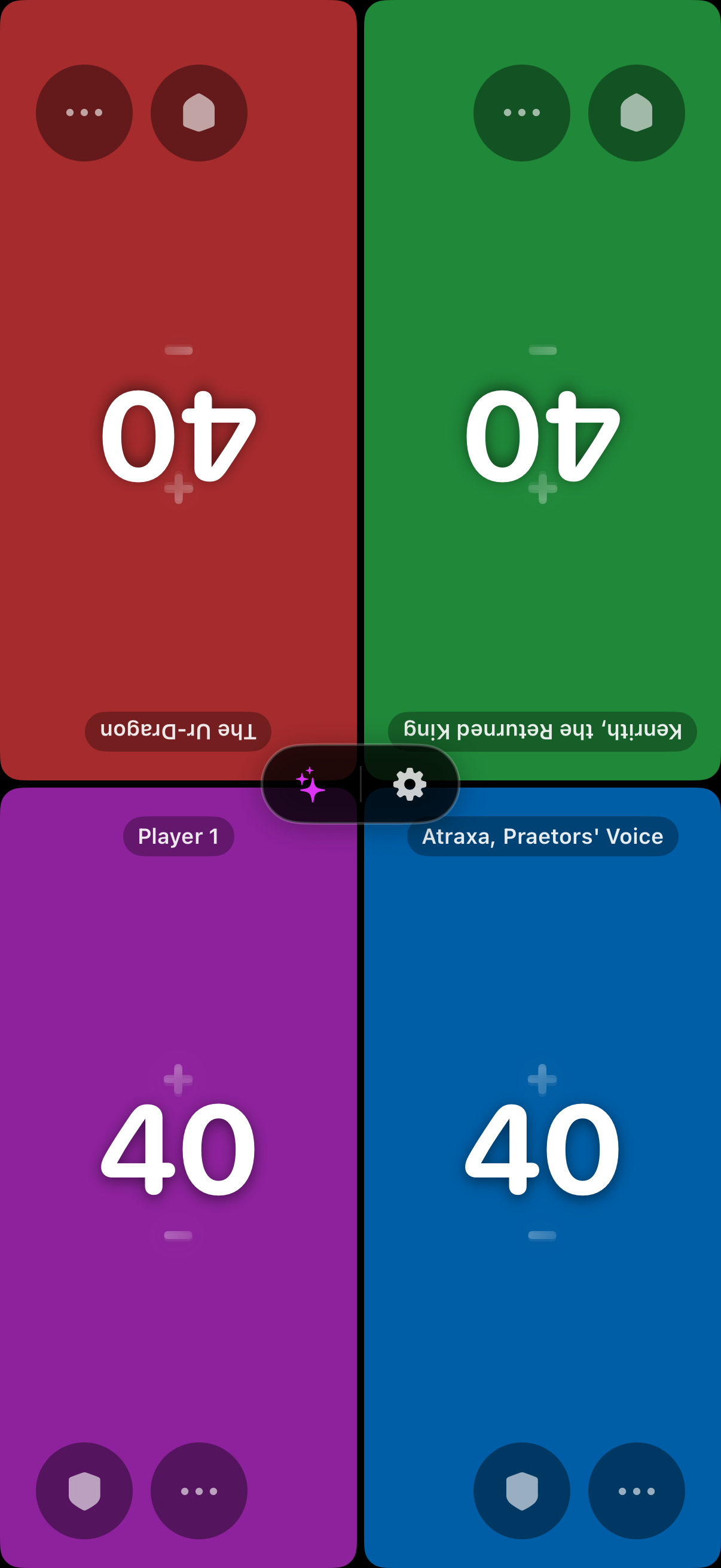
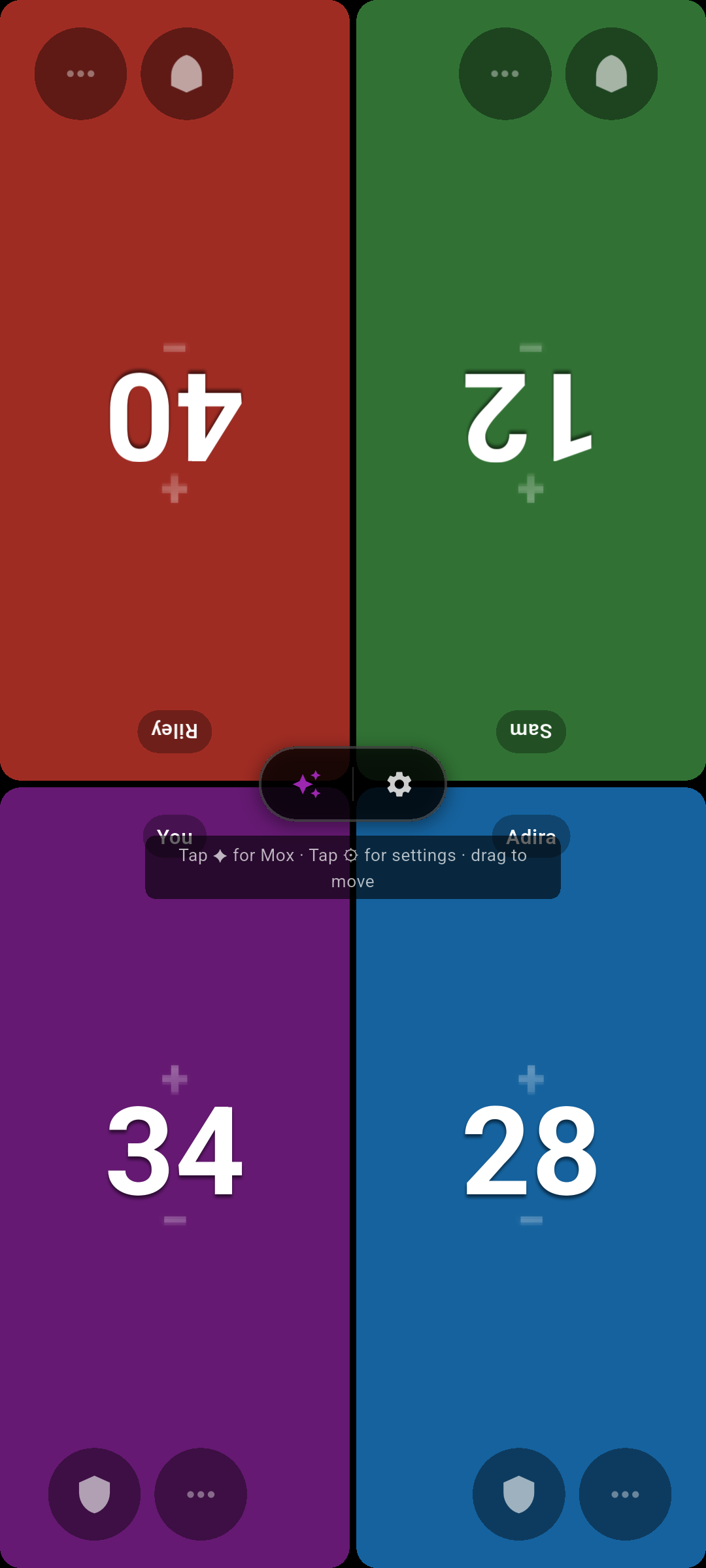 Screenshot
images/screenshot-life-counter.png
Start a game with a deck
From the Decks tab, press and hold a deck (or use its menu) and choose Start Game. The setup pre-fills the deck’s format, starting life and player count.
Quick Start and the deck-based Start Game differ only in their setup fields — Quick Start asks you to pick everything from scratch, while starting from a deck fills those fields in for you.
Set up the game
Before a game starts, tune the options to match your table:
Tap Start Game to begin.
Adjust life
-
Tap the top half of a player’s panel to add life.
-
Tap the bottom half to subtract life.
-
Press and hold to keep adding or subtracting rapidly.
Track commander damage
Tap the shield on a player to open Commander Damage, then raise the damage from each opponent. A LETHAL COMMANDER DAMAGE warning appears once an opponent has dealt 21.
Other counters
Tap a player’s counters button to open Counters — track poison, energy, experience, commander tax and treasure — and flip Status toggles for Monarch, Initiative, Day/Night and City’s Blessing.
Mox, players & settings
Use the floating pill — tap the sparkle for Ask Mox (Pro), or the gear for Reset, Players (rename/recolour/reorder) and End.
The floating pill can be dragged anywhere on screen — an intro tooltip points it out the first time. Open Edit Players via the gear → Players to rename, recolour and reorder everyone.
On iOS you can also tap a player’s name directly to open Edit Players.
End or reset, and save
From the gear, choose Reset or End. Reset restores everyone’s starting life and keeps you in the game, while End leaves it. Both offer Save to Game Log or carrying on without saving — saving records the result.