
Browsing shared decks
Explore community decks, favourite and comment on the ones you like, download them into your own decks — and share your own.
On this page
Open Shared Decks
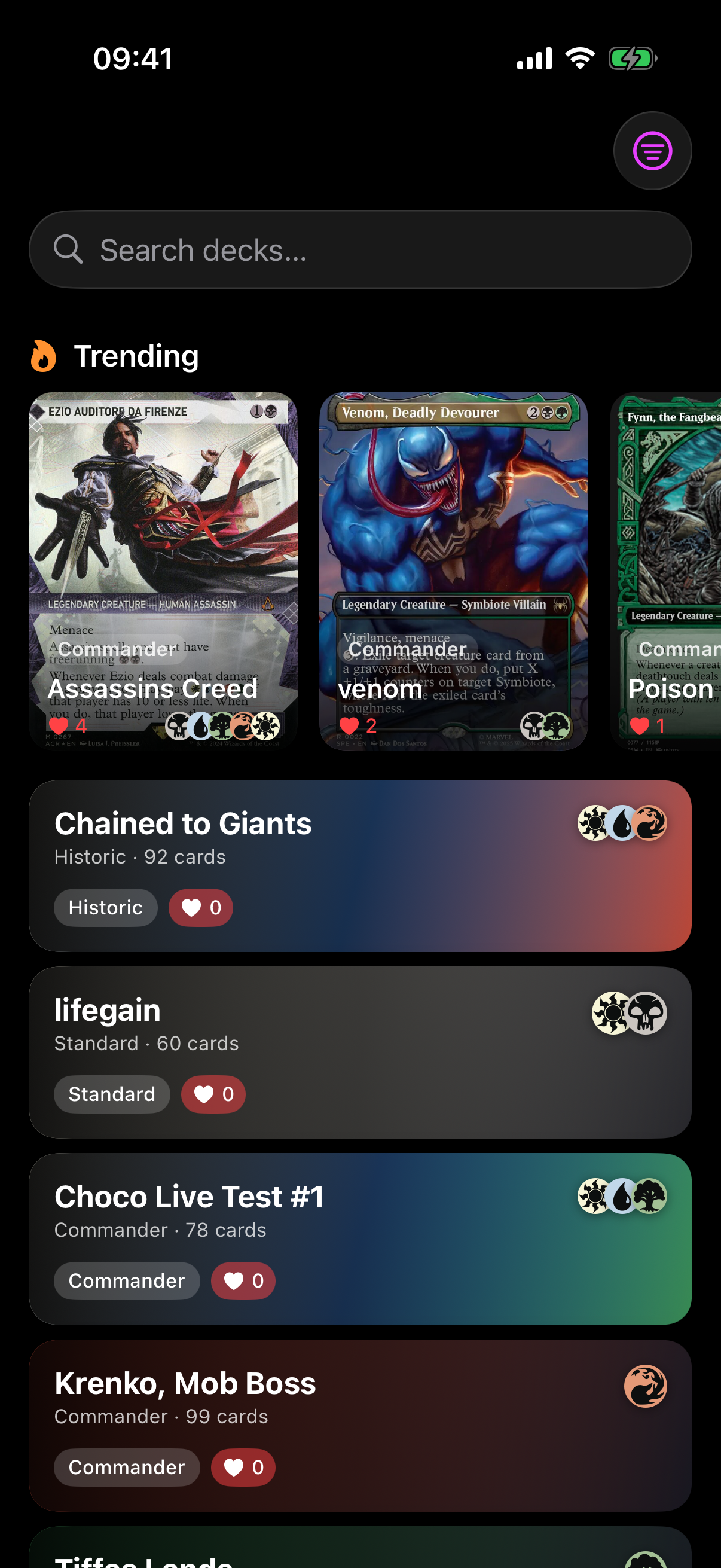
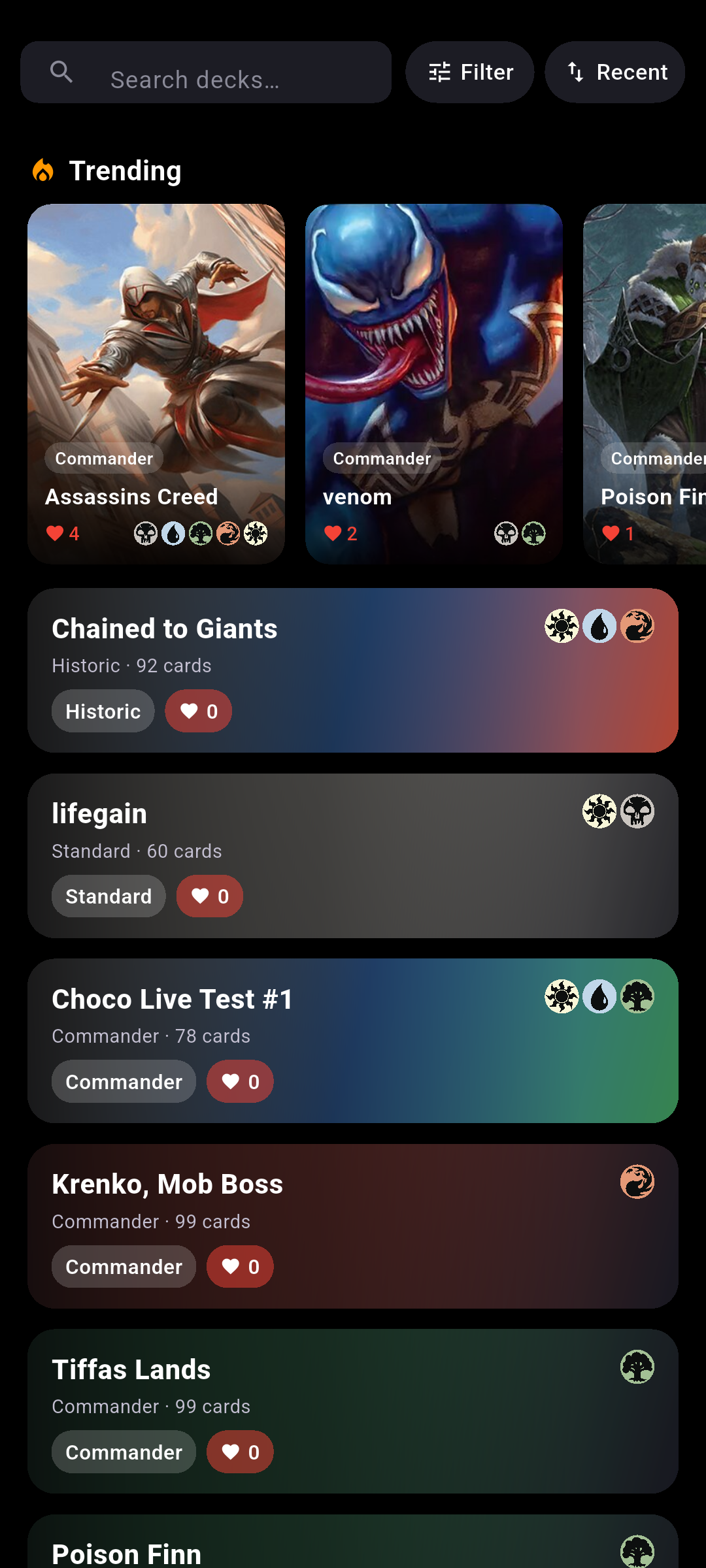
In the Discover tab, tap Decks in the bottom pill to open the Shared Decks browser.
 Drop screenshot here
images/guides/shared-decks/01-shared-decks.png
Browse & trending
A Trending carousel sits at the top; keep scrolling the list to load more. Each deck shows its cover, name, format, card count and mana colours, plus badges like its format or Moxfield if imported.
Search & filter
-
Search by name
Use the Search decks… field to find decks by name.
-
Narrow with filters
Tap the filter button in the top-right of the nav bar to narrow by format and colours.
Tap the Filter pill in the search-bar row (next to the sort pill) to narrow by format and colours.
-
Sort the list
Tap the sort pill in the search-bar row to reorder by Popular, Recent or Most Saved.
Open a deck
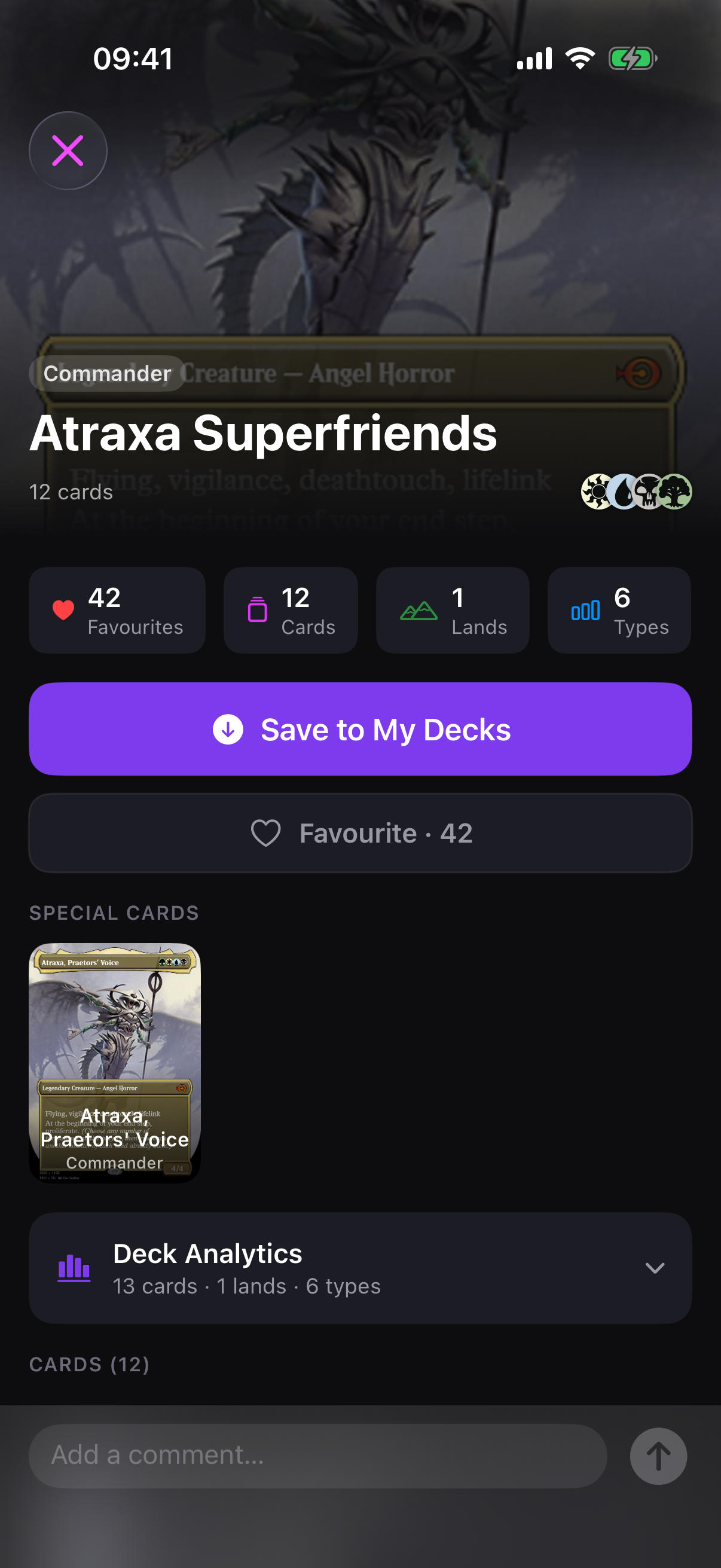
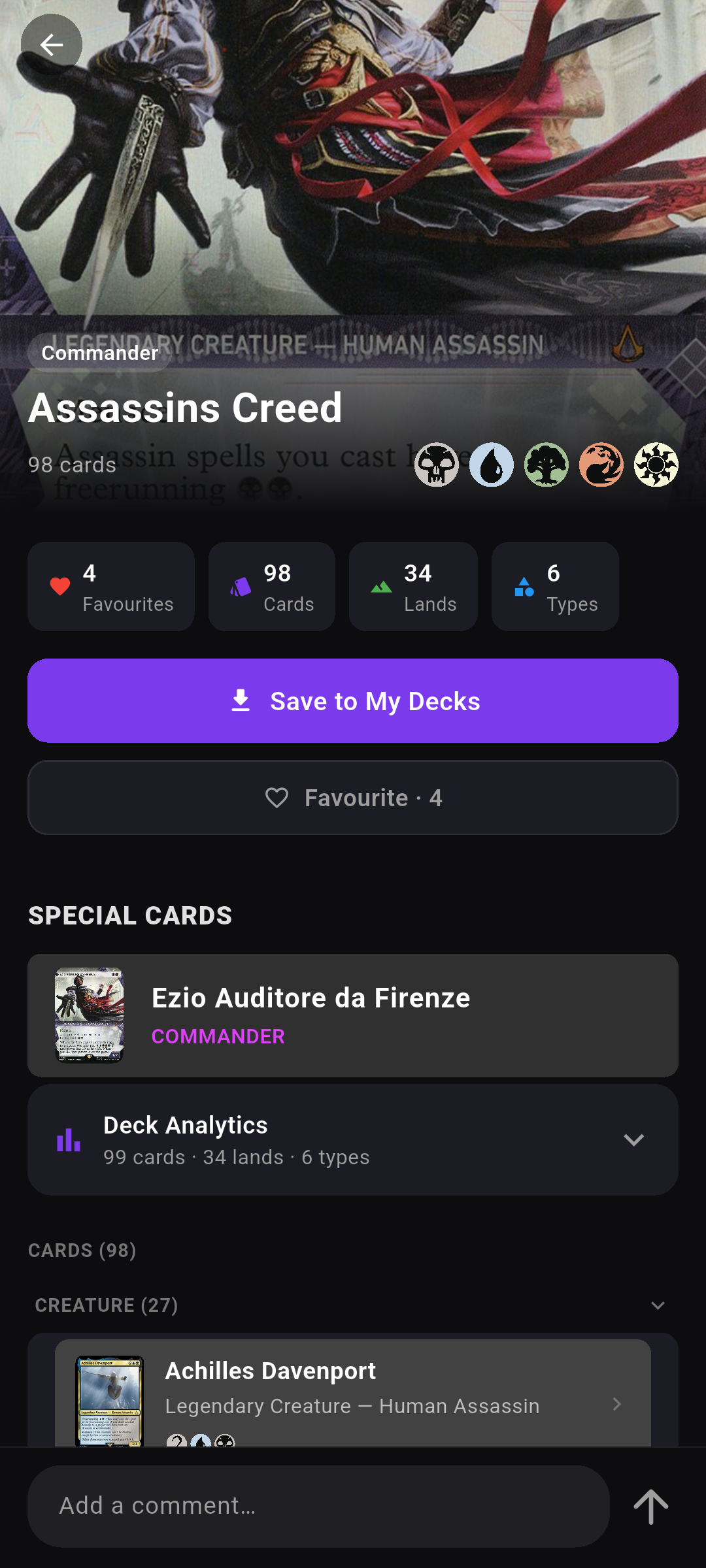
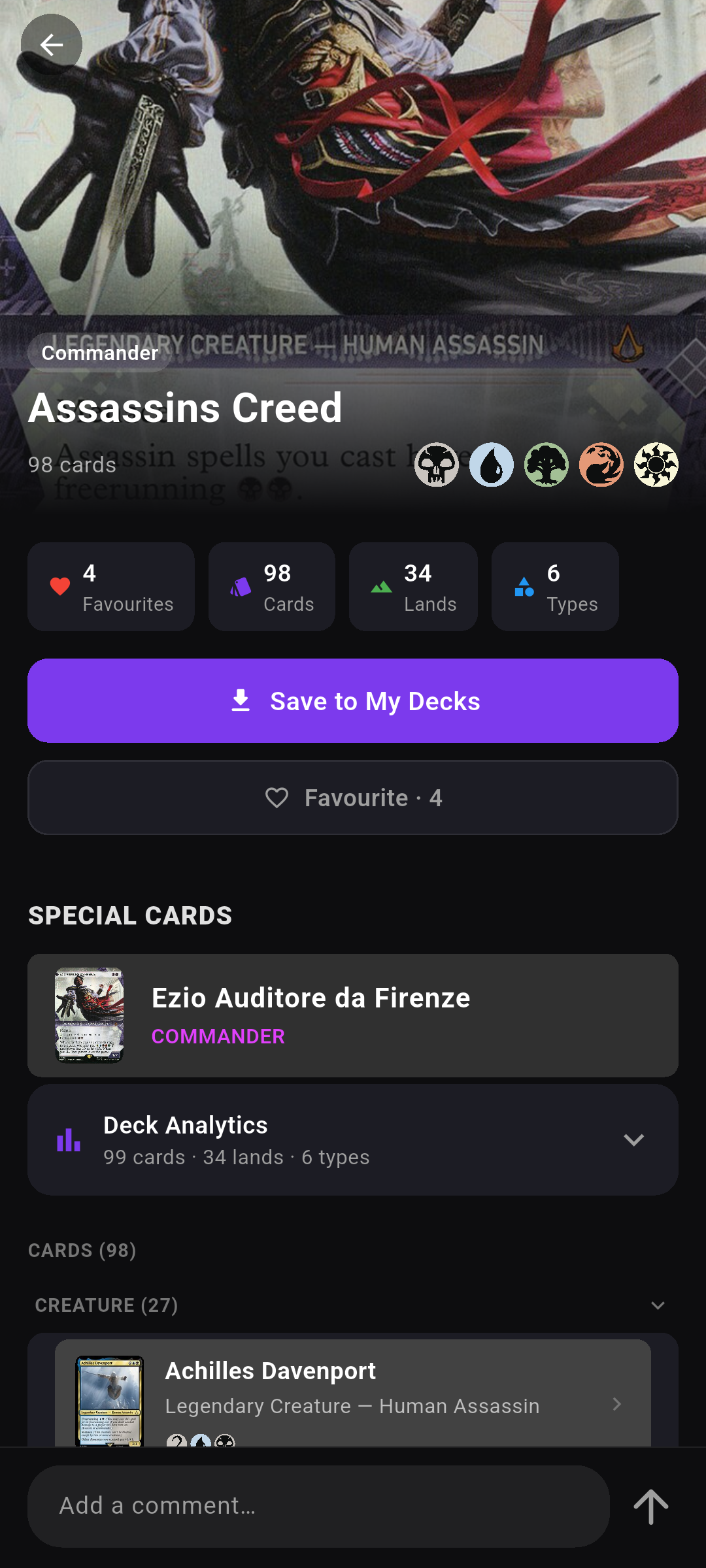
Tap any deck to open its full details. At the top you'll see stat pills — including a Favourites count — along with the deck's colours and card count, a Special Cards strip, a collapsible Deck Analytics section, and a YOU MIGHT ALSO LIKE row of similar decks.
 Drop screenshot here
images/guides/shared-decks/04-deck-details.png
Favourite a deck
-
Tap Favourite
On a deck's details, tap Favourite · [count]. It switches to Favourited · [count] and the number ticks up.
-
Spot the count anywhere
The favourite total also appears as a heart badge on each deck in the browse list, and in the deck's Favourites stat pill.
-
Undo it
Tap Favourited again to remove your favourite.
Comment on a deck
-
Find the comments
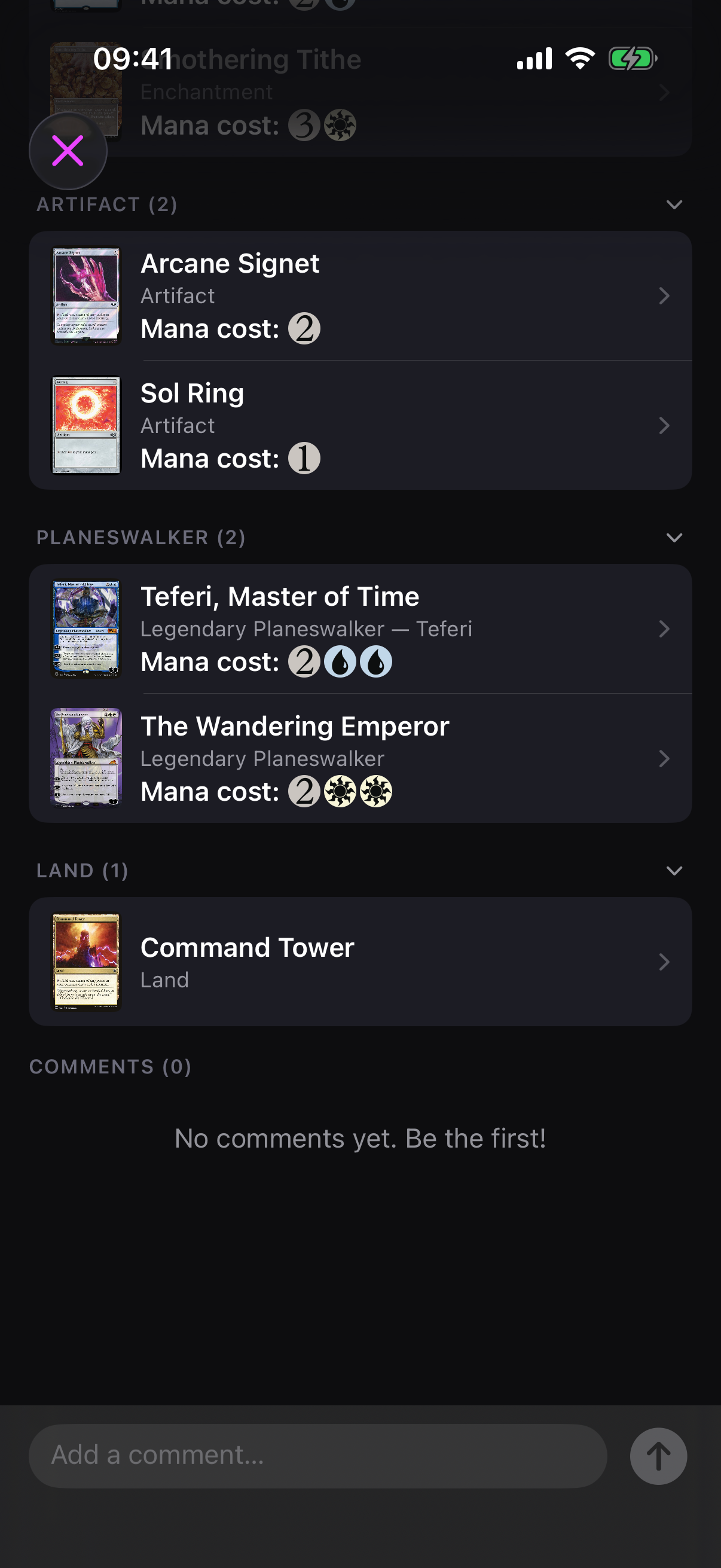
Scroll to the COMMENTS section near the bottom of the deck. If there aren't any yet you'll see No comments yet. Be the first!
-
Write one
Tap the Add a comment… field, type your message, then tap the purple send arrow.
-
Read the rest
Comments show newest first with the poster's initial and how long ago they posted; the original sharer carries a Deck owner badge. Tap Load more comments to see older ones.
-
Delete yours
Tap the trash icon on a comment you posted to remove it.
Good to know
 Drop screenshot here
images/guides/shared-decks/06-comments.png
Save it to your decks
Download a copy of a shared deck into your own Decks.
Tap the save action and you'll see Fetching… while it pulls in the cards, then it changes to Saved to Library.
Tap Save to My Decks. It shows Loading cards… while it pulls in the cards, then changes to Already Saved, and a Deck saved to your collection! toast confirms it.
Share your own deck
Want your deck listed here for others to favourite and comment on? Share it from its details screen.
-
Open the share panel
On one of your decks, find the Share with Community panel (Let others discover and save your deck).
-
Publish it
Tap Share with Community, check the name, format and colours in the preview, then tap Share. You'll see Deck Shared! once it's live.
-
Manage it later
The panel then shows Shared with Community with Update (re-publish your latest changes) and Remove (take it down) buttons.